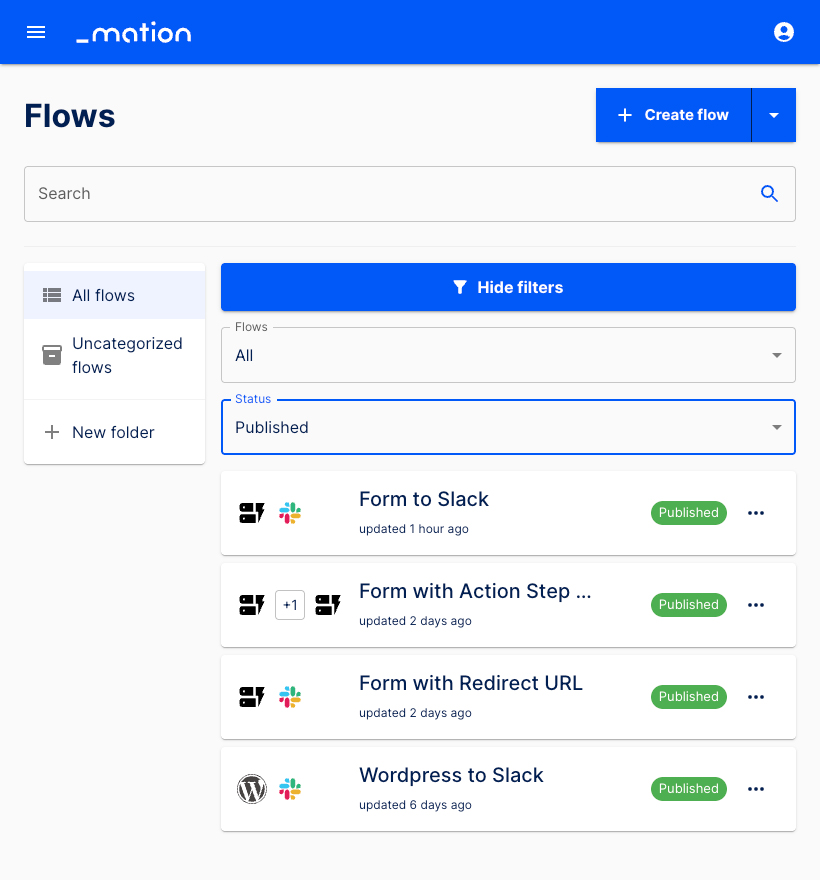
Appearance
Create a flow
Creating flows is easy. The best way to learn how to set up flows is to start with a real use case.
Let's assume we would like to create a flow that fetches new submissions from Typeform and then sends them to a Slack channel.
To perform that task we will use the Typeform and Slack apps. Let's start with creating connections for these apps.
TIP
The easiest way to set up a flow is to connect all involved third-party apps first. Once the connections are established setting up a flow is a piece of cake. Alternatively you may also connect third-party apps while creating a flow, this might appear more complex, though.
Establish the Typeform connection
Workflow Automation provides a detailed user guide to help you connect third-party applications.
Follow these instructions step by step to easily connect Typeform with Workflow Automation.
TIP
Whenever you want to create a connection for an app, you may click the our documentation link in the information box to learn how to create a connection step by step for that specific app.
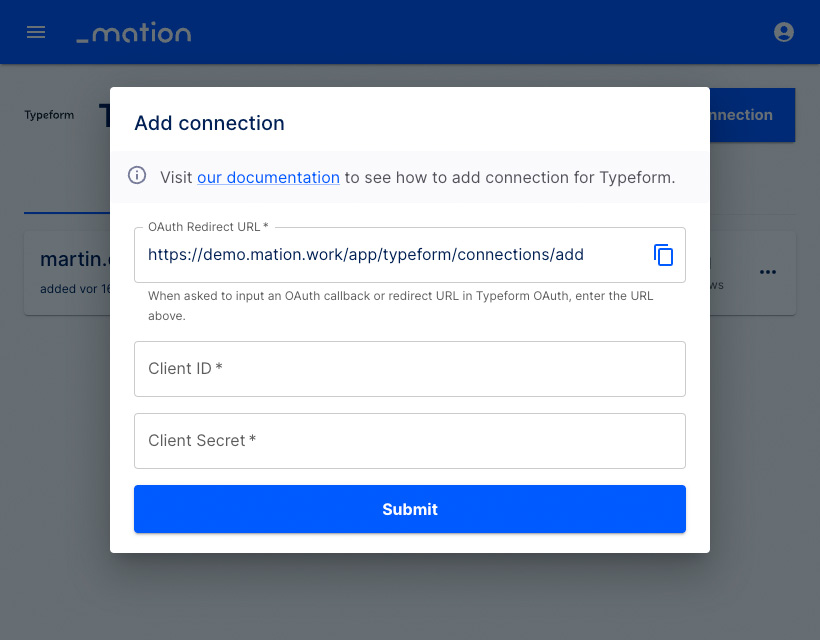
Establish the Slack connection
Workflow Automation provides a detailed user guide to help you connect third-party applications. Follow these instructions step by step to easily connect Slack with Workflow Automation.
Build the flow
Go to the Flows page on Workflow Automation. Click the + Create flow button to create a flow.
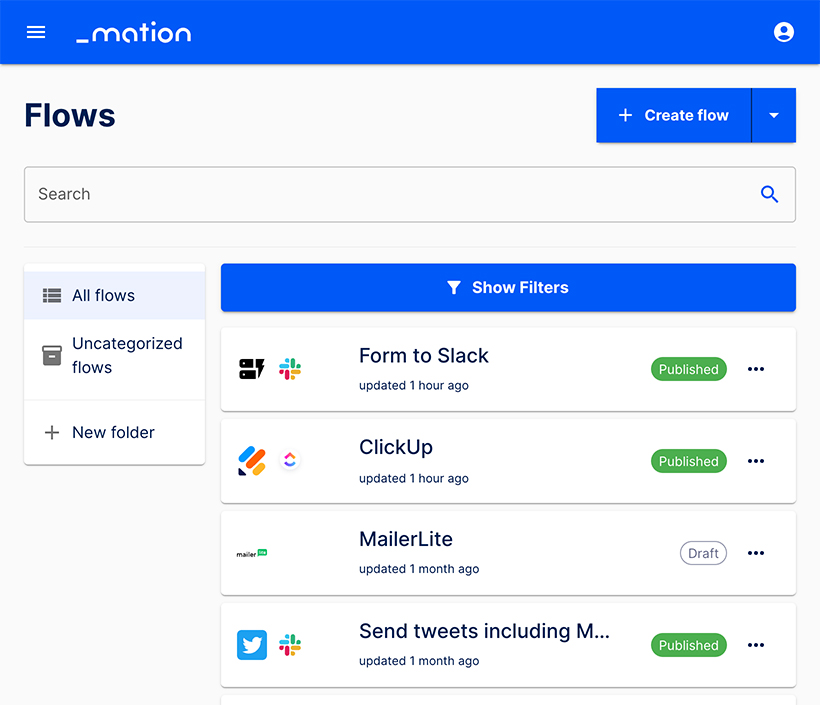
Name your flow with an appropriate name.
TIP
You may edit your flow name at any time. You don't need to unpublish your flow to rename it.
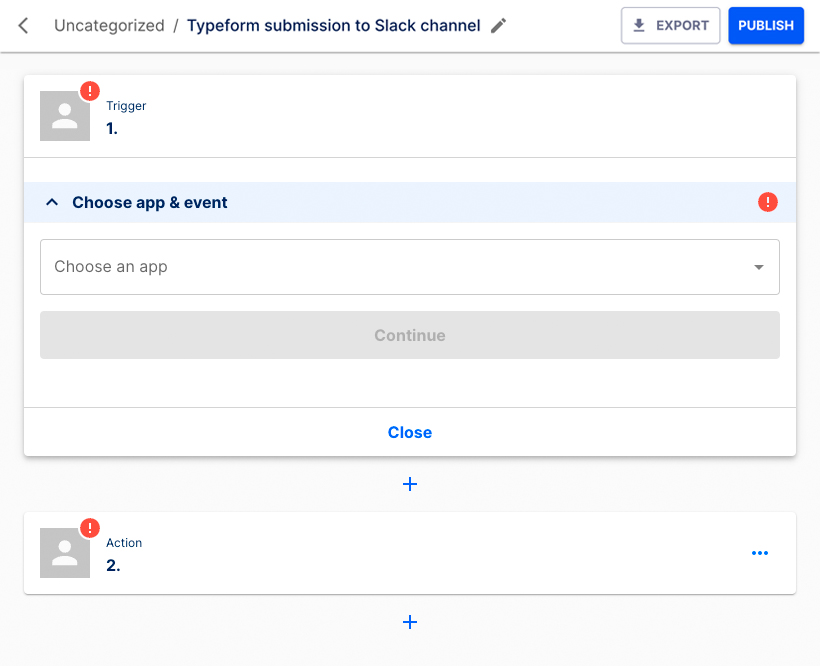
Choose Typeform as application from the dropdown list.
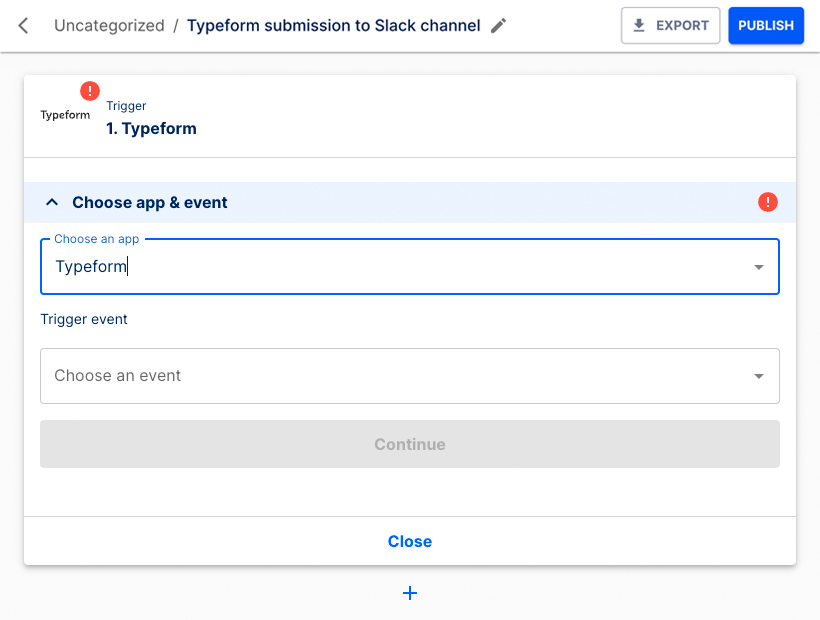
Choose New entry as the Trigger event from the dropdown list. Click the Continue button.
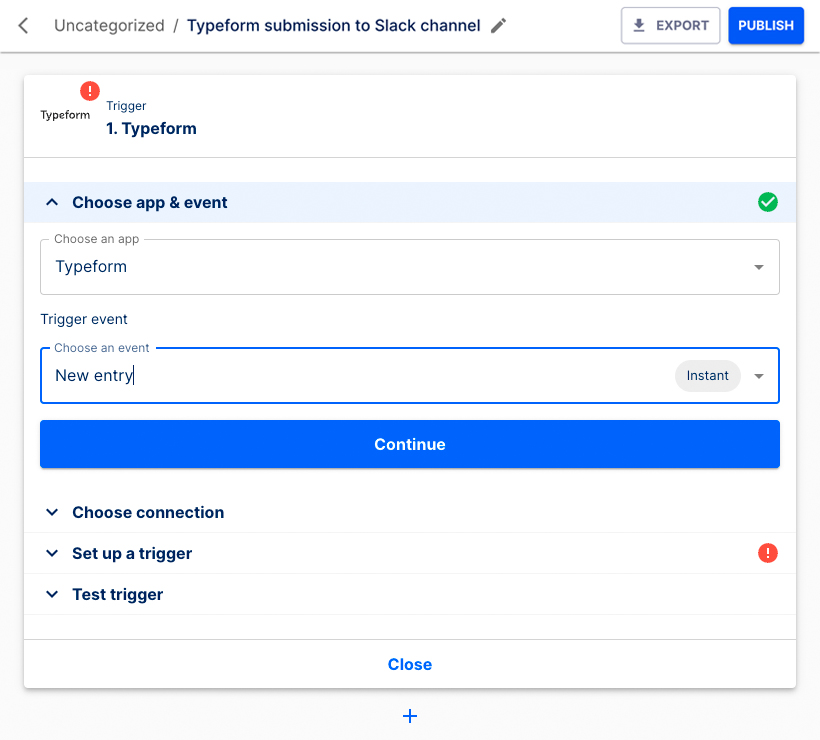
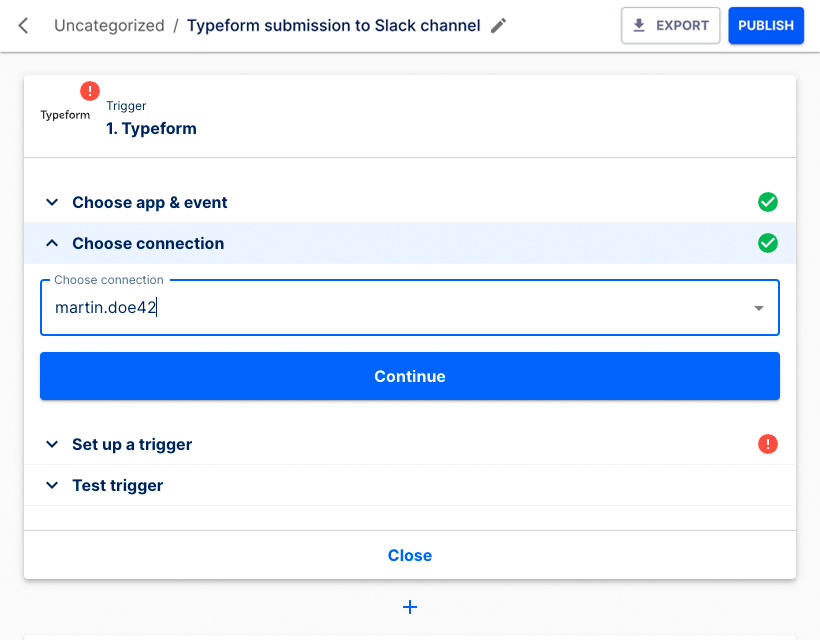
Choose your connection from the dropdown list. Click the Continue button.
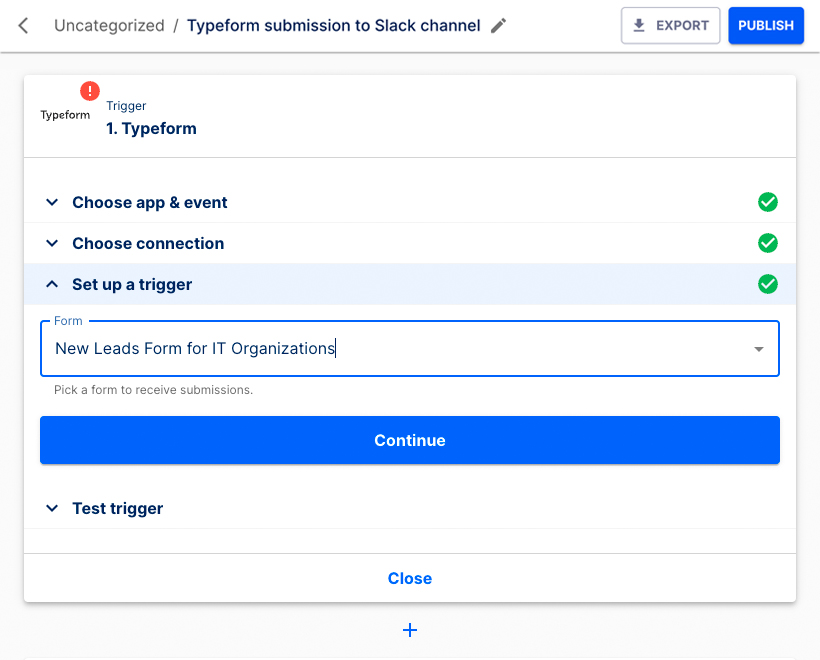
Select your form from the dropdown list to set up the trigger. Click the Continue button.
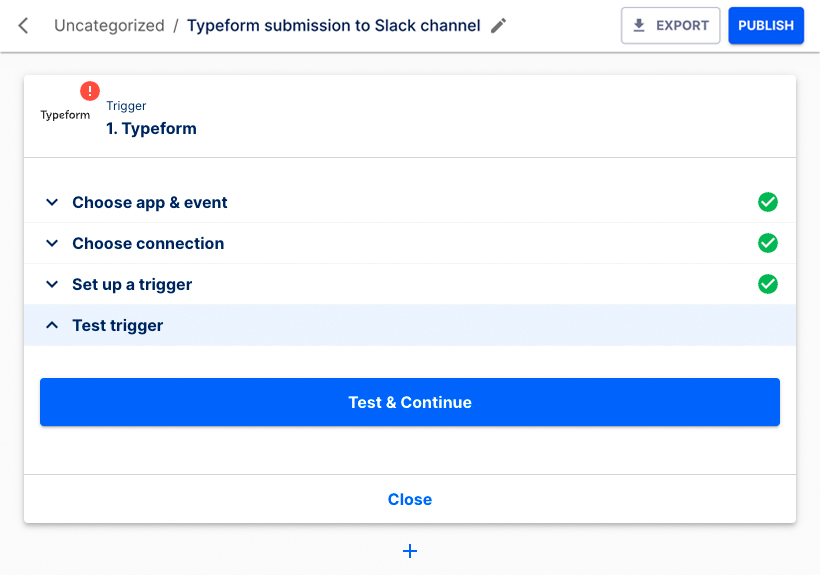
Click the Test & Continue button to test the Trigger step.
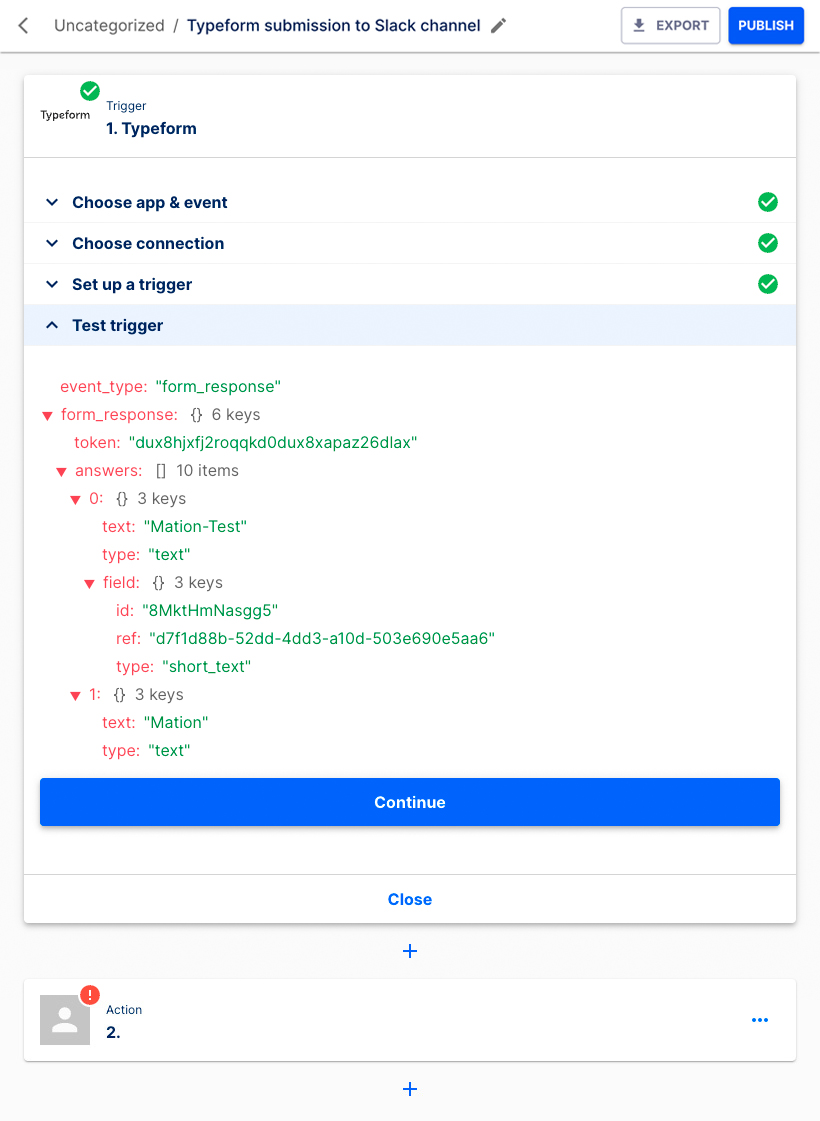
Click the Continue button.
The Action step is now ready for configuration.
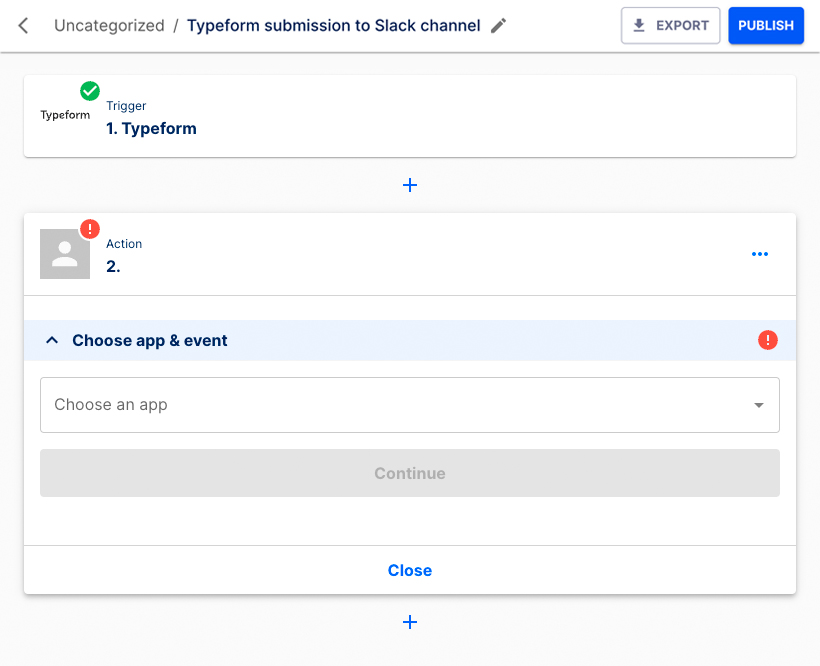
Choose Slack as application from the dropdown list.
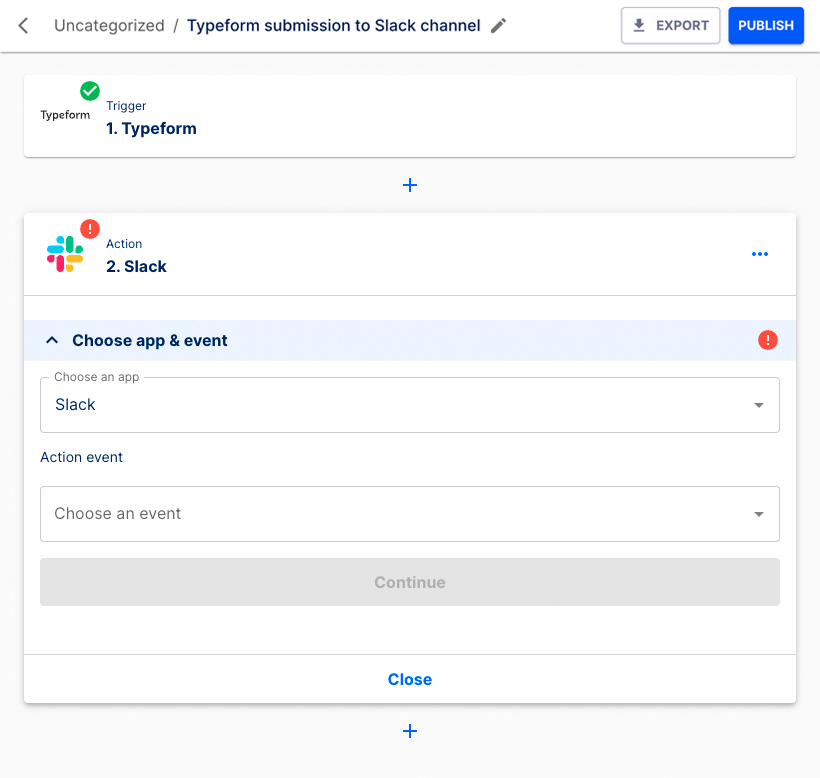
Choose Send a message to a channel as the Action event from the dropdown list. Click the Continue button.
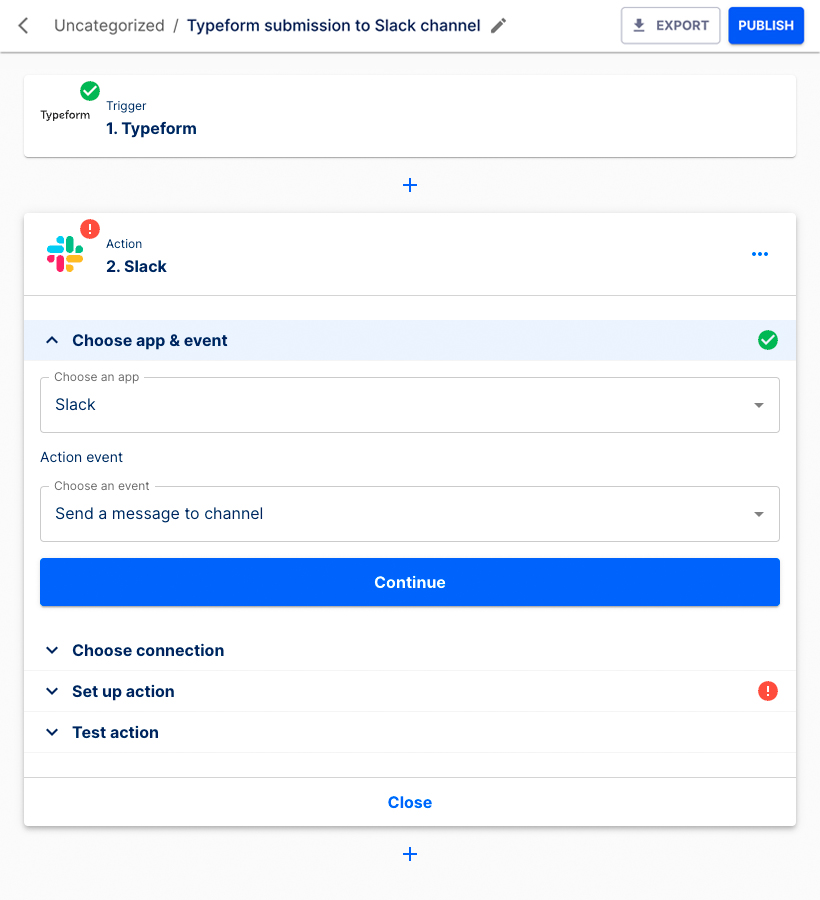
Choose your connection from the dropdown list.
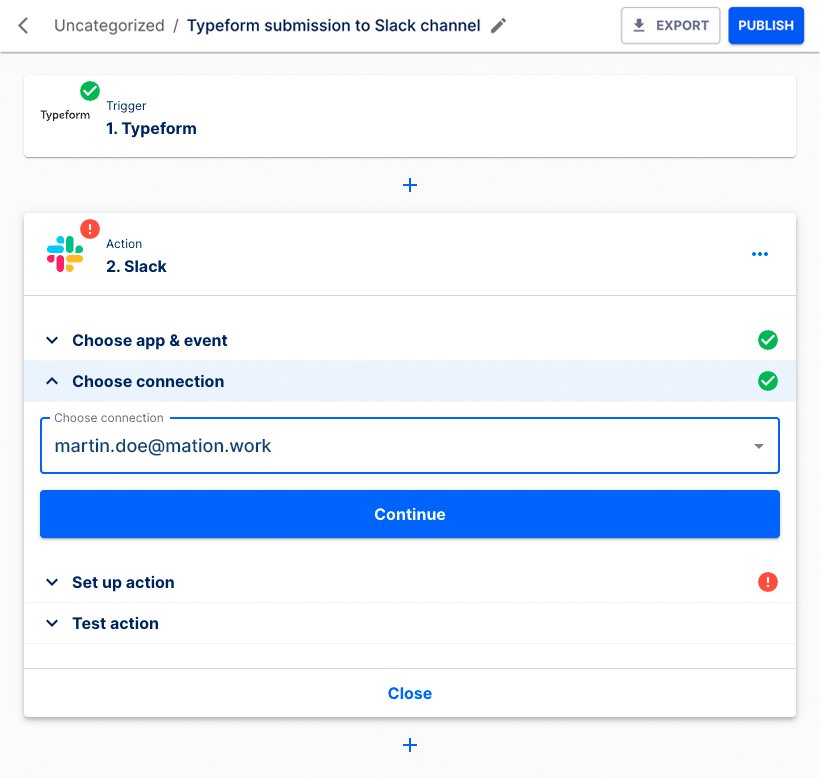
Choose your Channel from the dropdown list, insert a Message text, choose to either Send as bot or not, and click the Continue button.
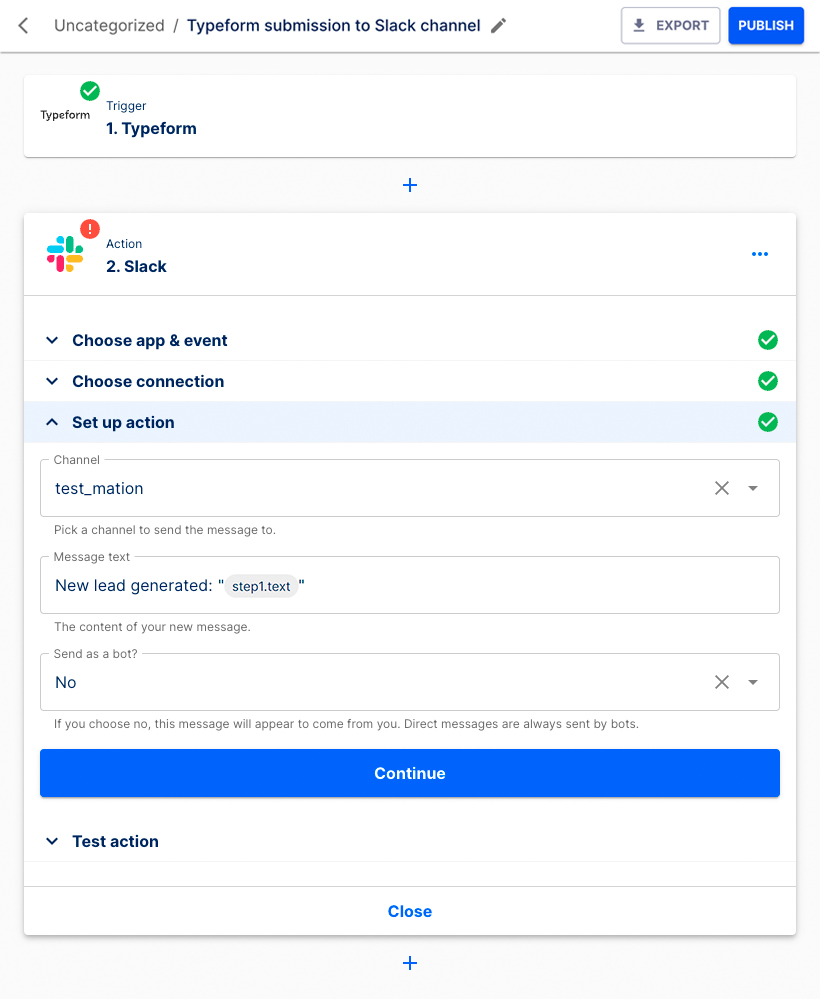
Click the Test & Continue button to test the Action step.
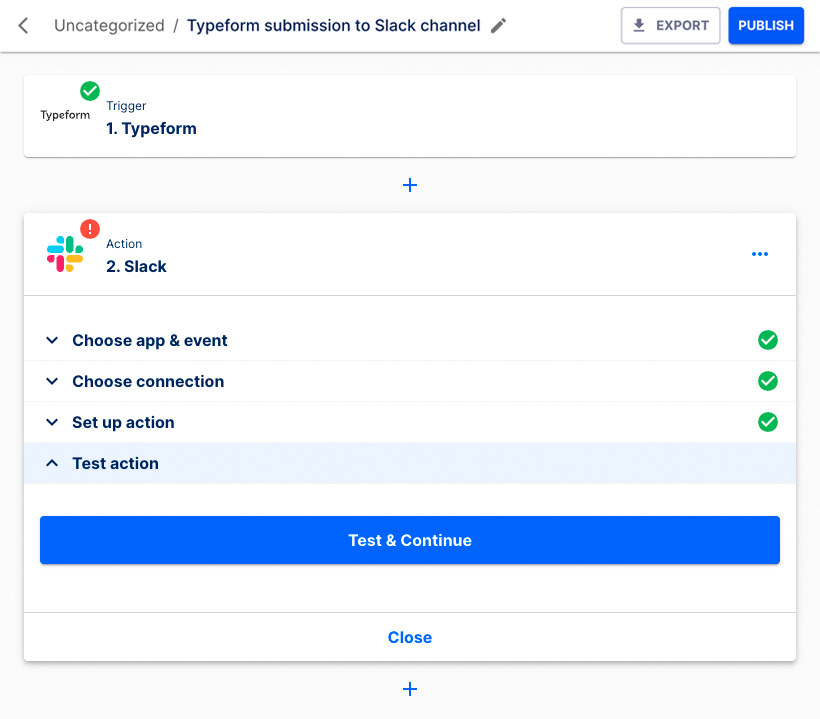
Click the Continue button to finish the setup.
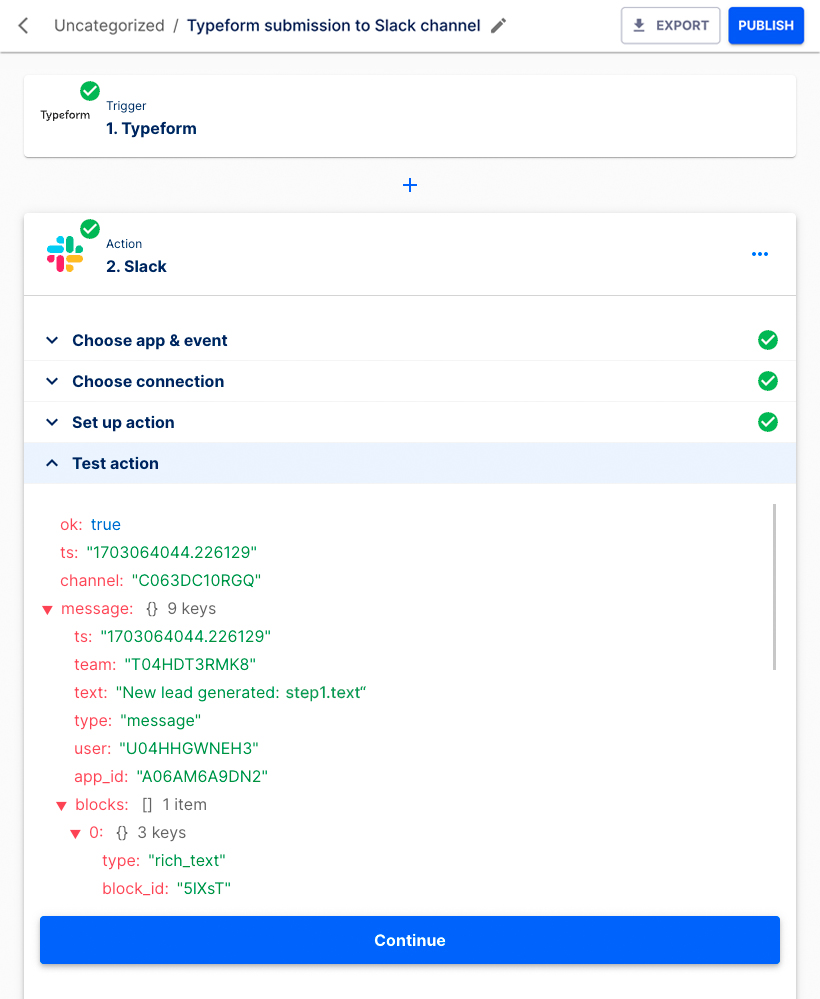
The flow is now configured. Click the Publish button.
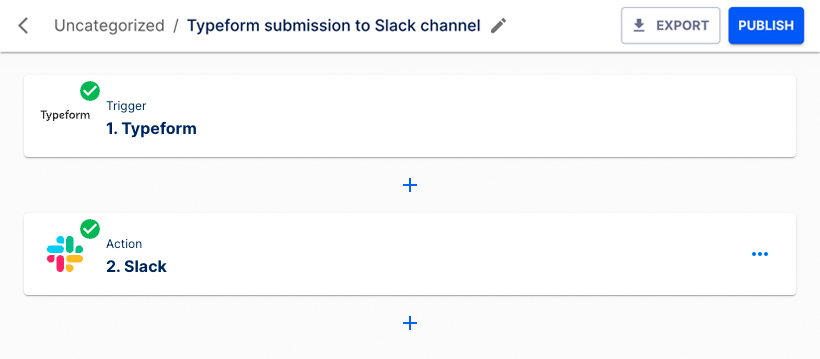
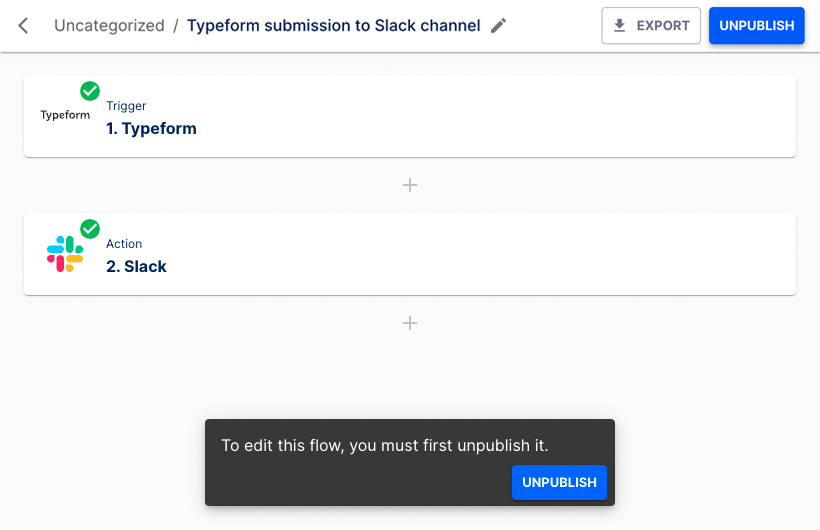
Your new flow has been published! If you would like to edit the flow, click the Unpublish button.
NOTE
Published flows cannot be edited. To make changes, you must first unpublish the flow, apply your changes, and then publish it again.
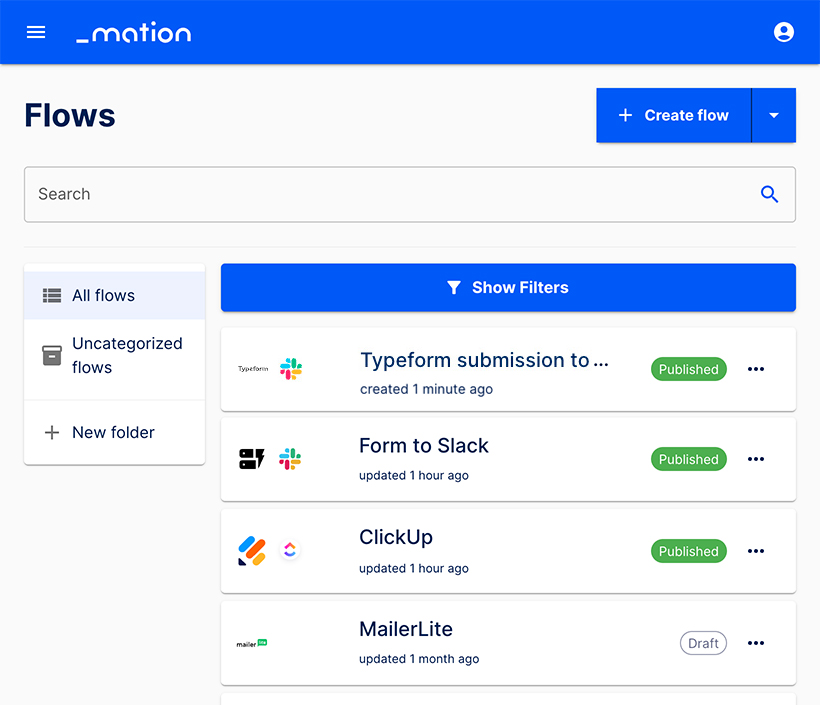
Navigate to the Flows page. Your new flow is ready and running!
TIP
Proceed to Executions to see your flow at work.
Executions
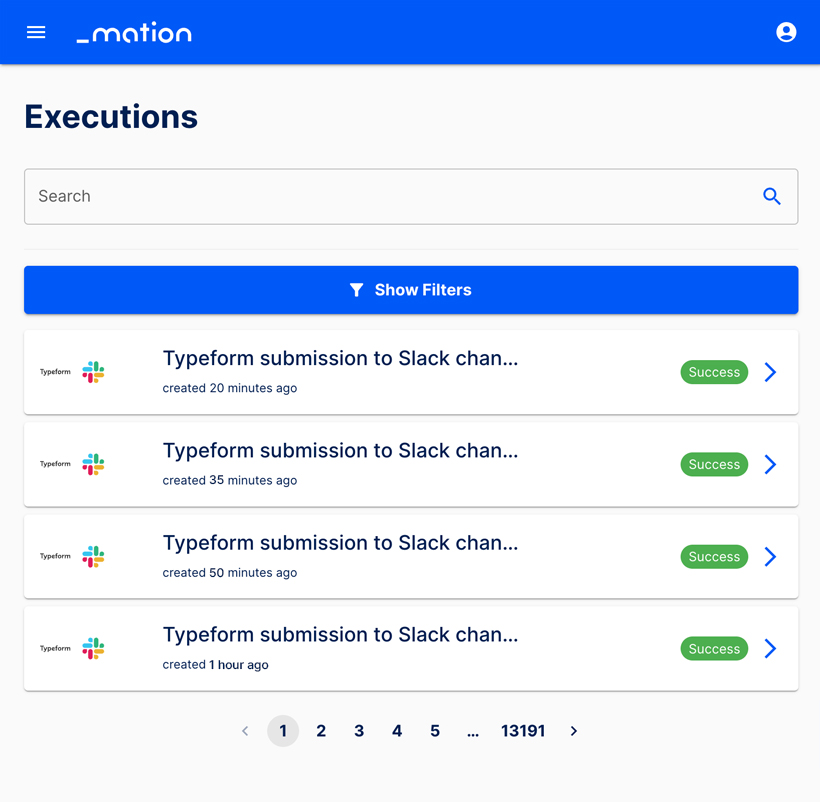
Go to the Executions page and select an item from the list.
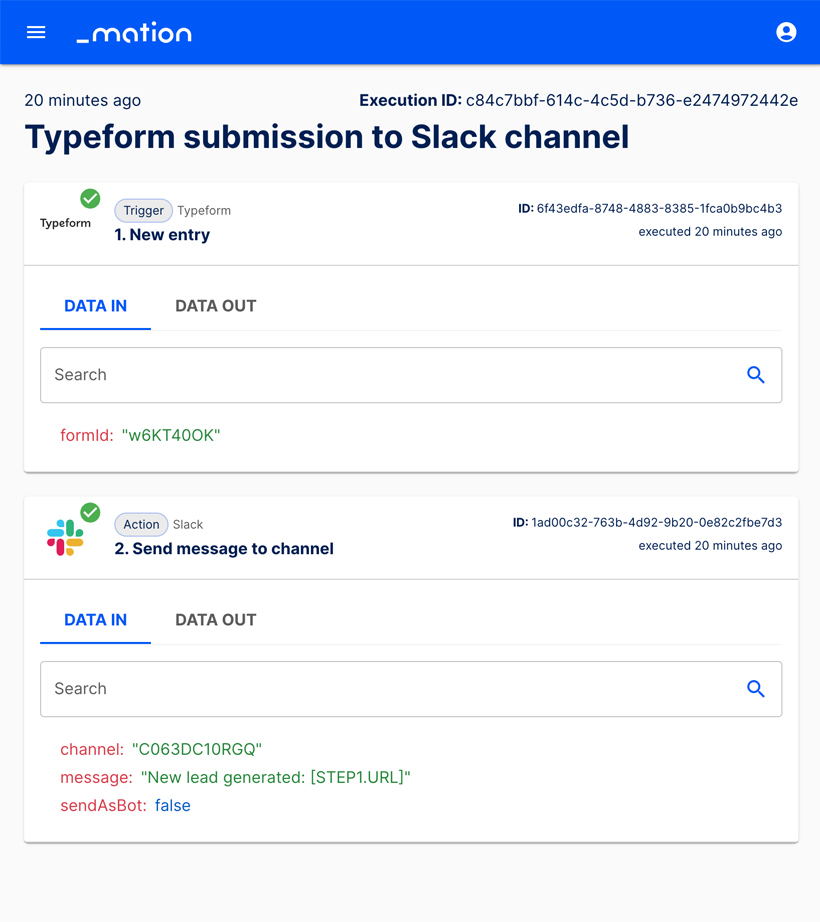
The DATA IN details are now displayed.
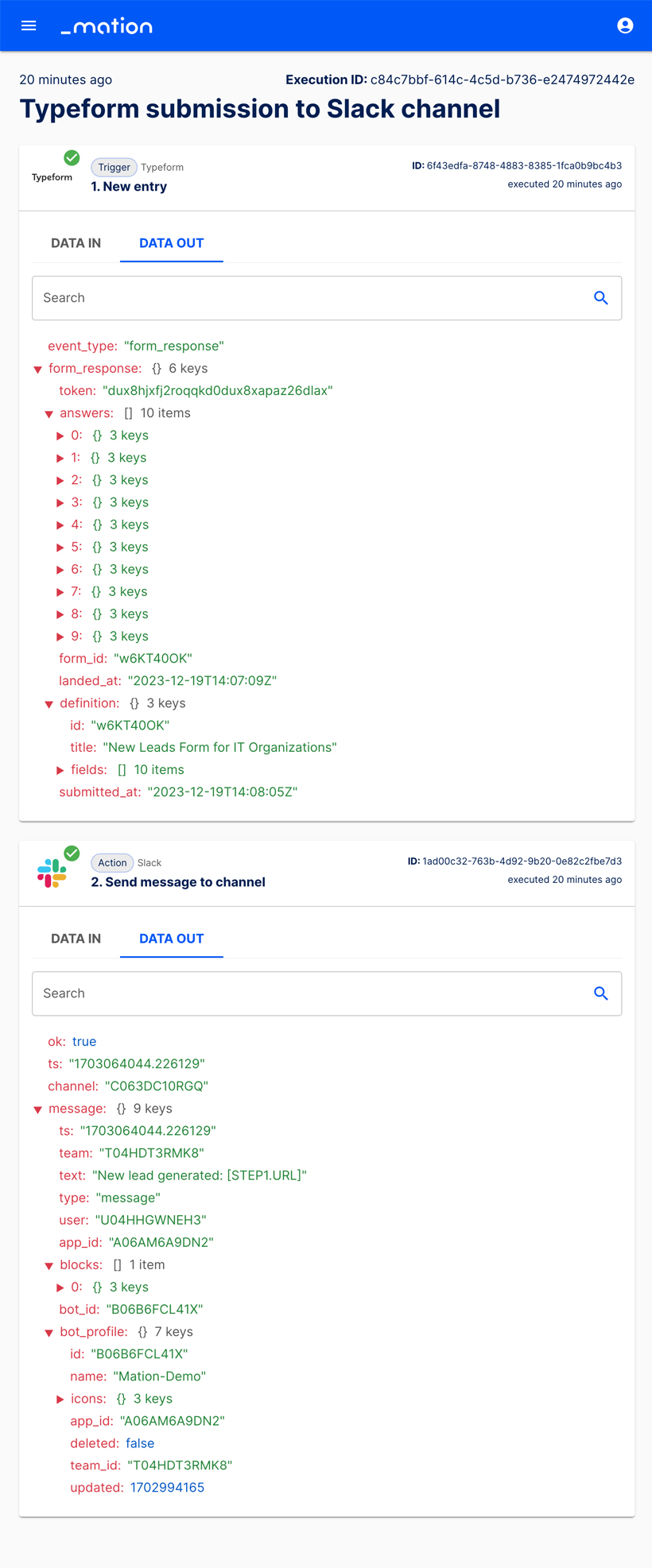
Click DATA OUT to see the details.
Export a flow
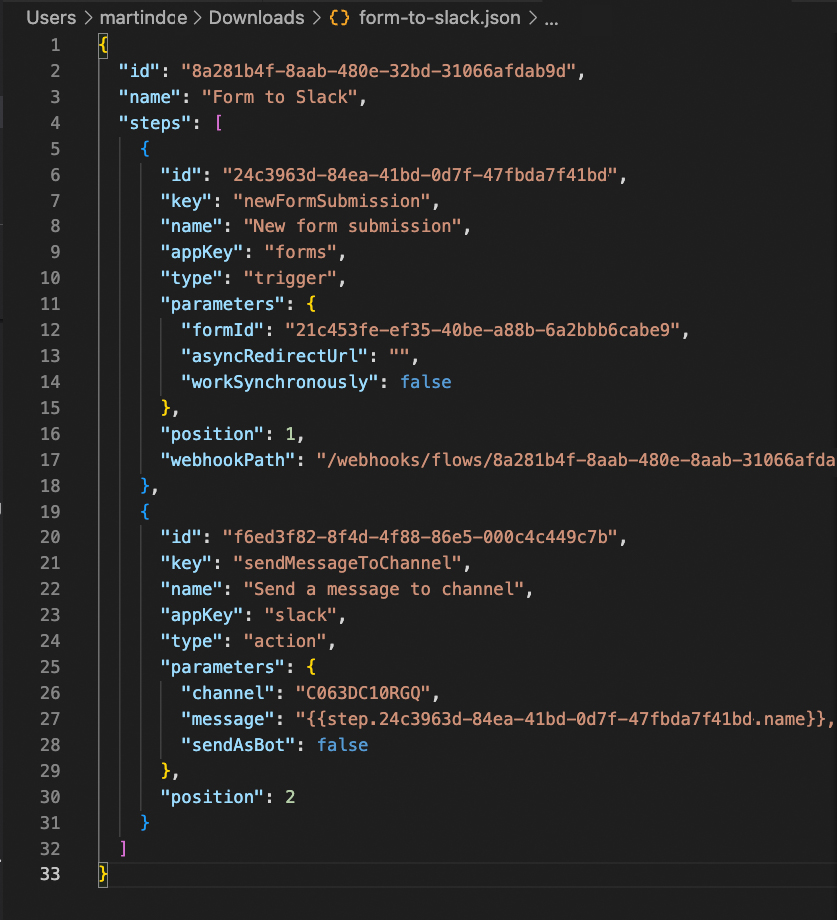
Any flow can be exported to a JSON format. There are two ways to export flows in Workflow Automation. You can either export a flow directly from the Flows page or from the editor.
Export a flow from the Flows page
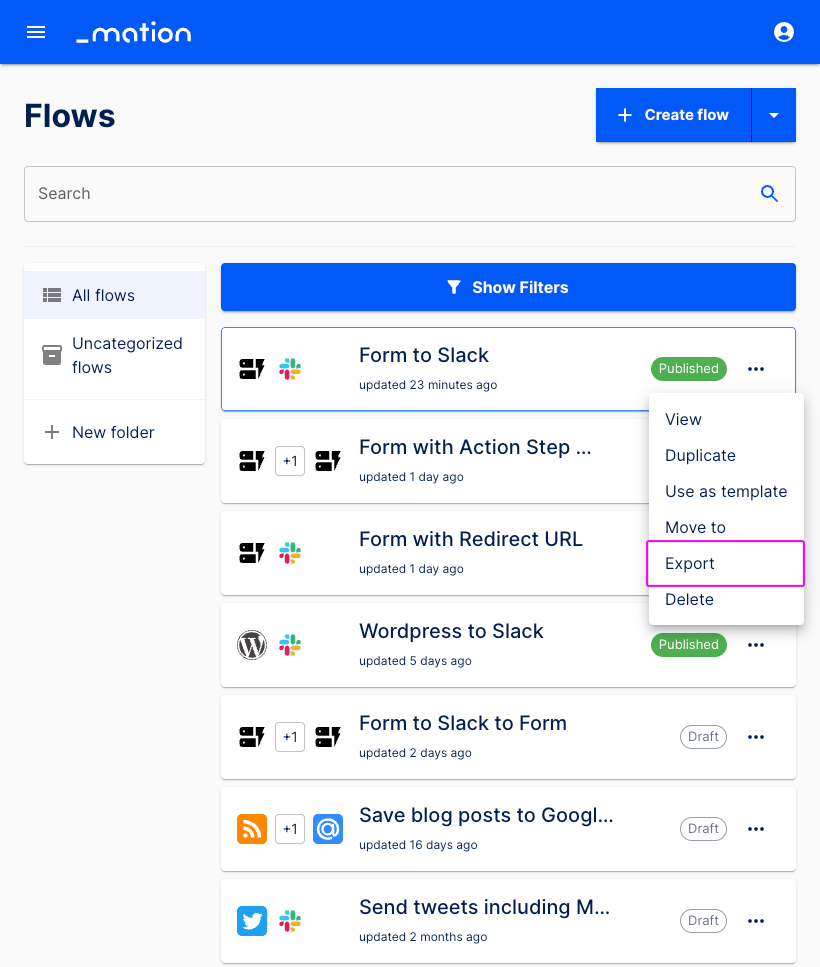
- Choose a flow in the Flows overview page.
- Click the meatballs (...) menu.
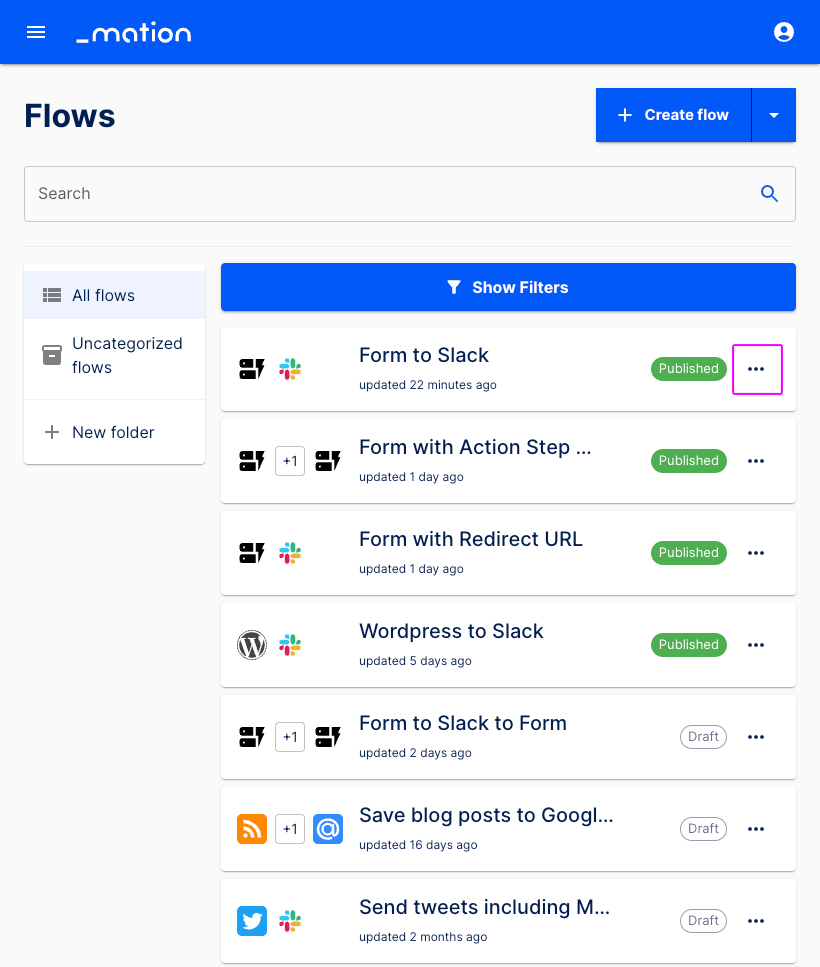
- Select the Export option.
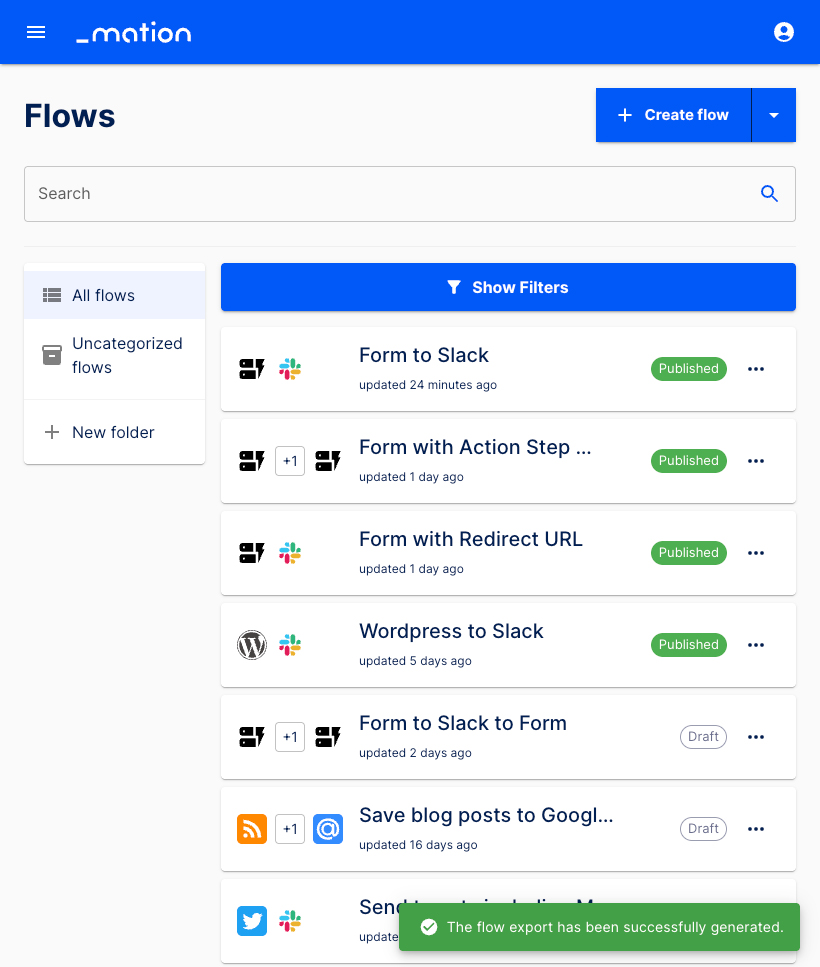
- The flow has been successfully exported.
- The flow has been exported to a JSON format.
Export a flow from the editor
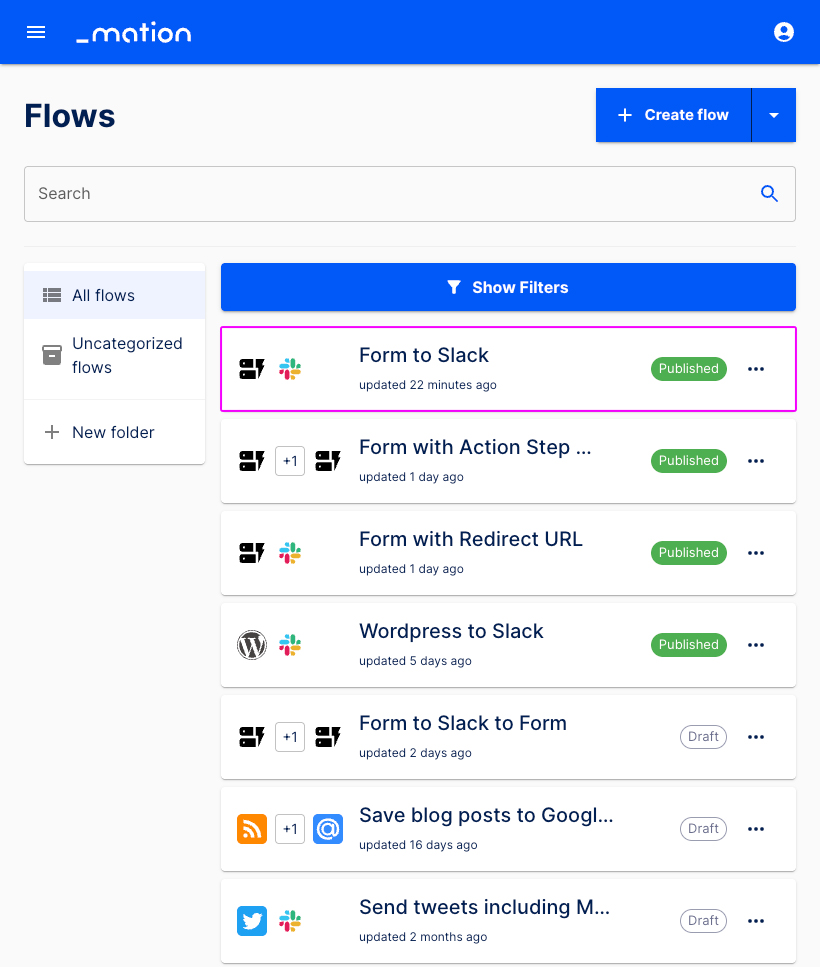
- Choose a flow in the Flows overview page.
- Click the Export button.
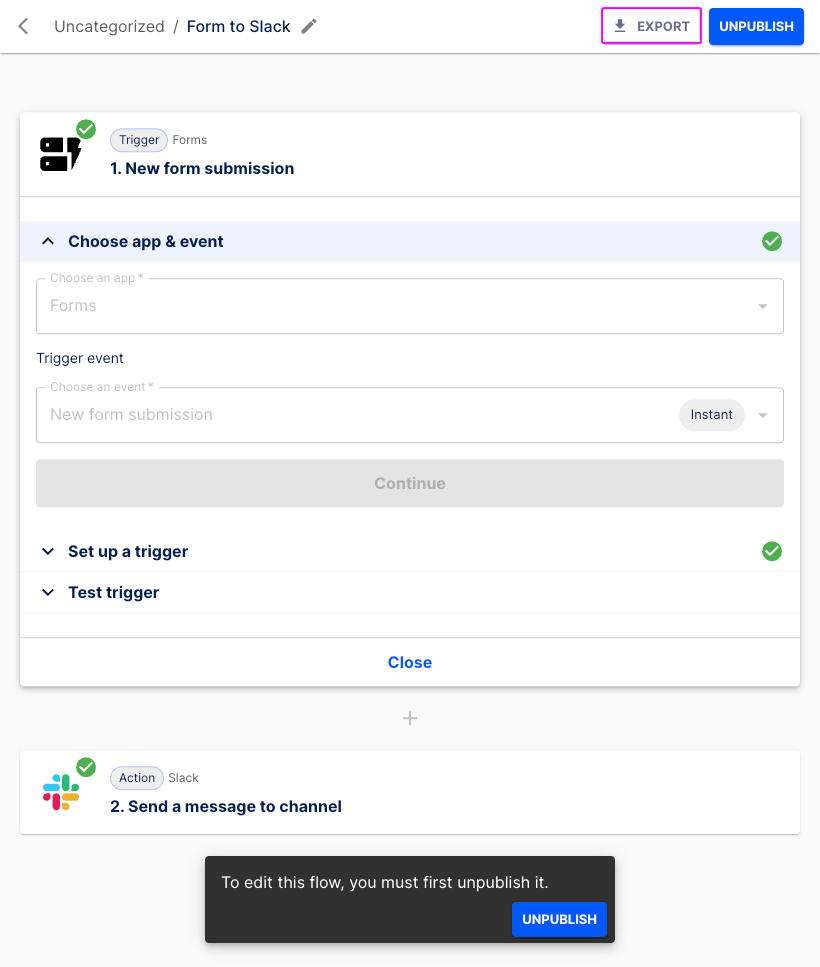
- The flow has been successfully exported.
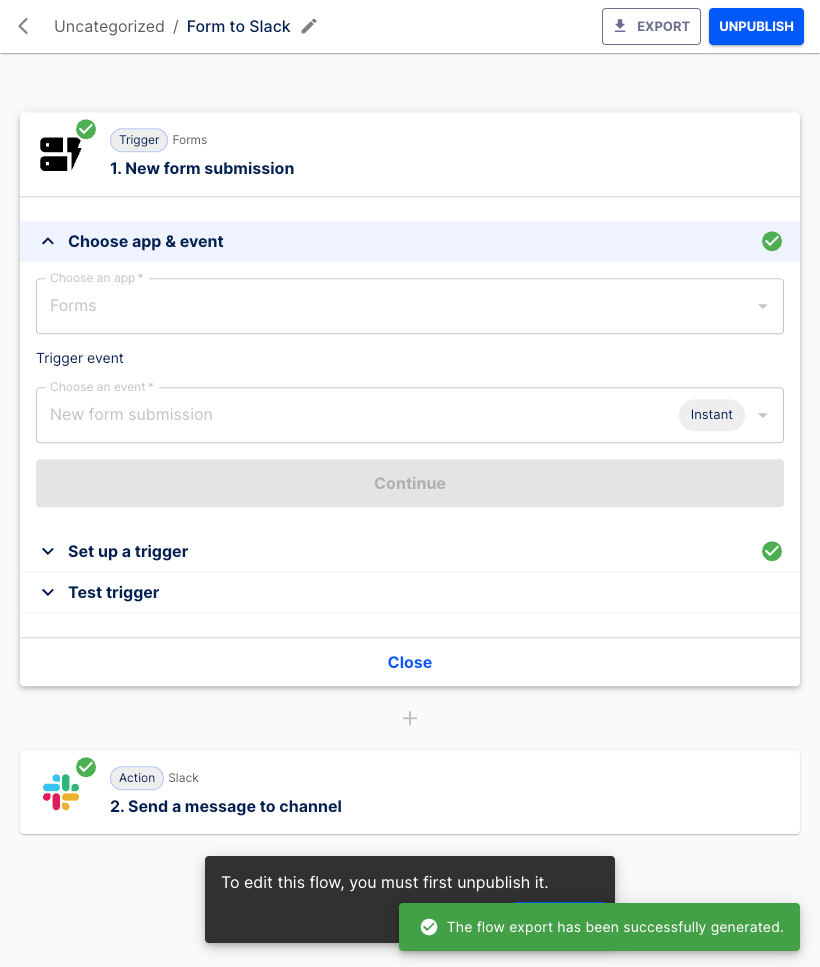
- The flow has been exported to a JSON format.
Import a flow
- Click Import flow.
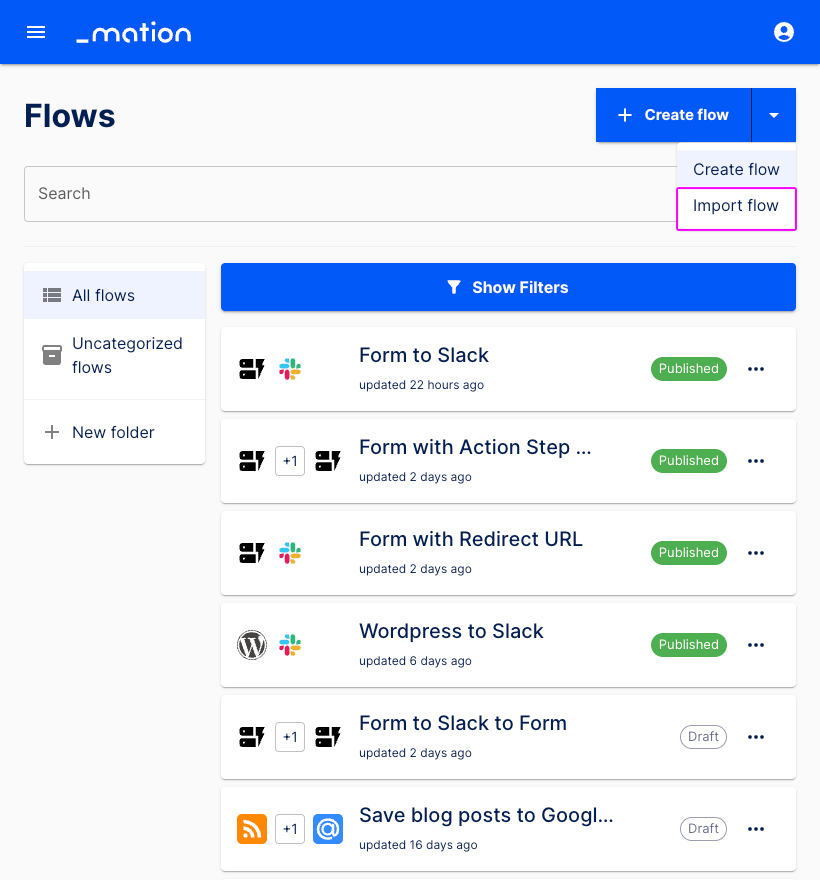
- A modal window opens. Click the Select file button.
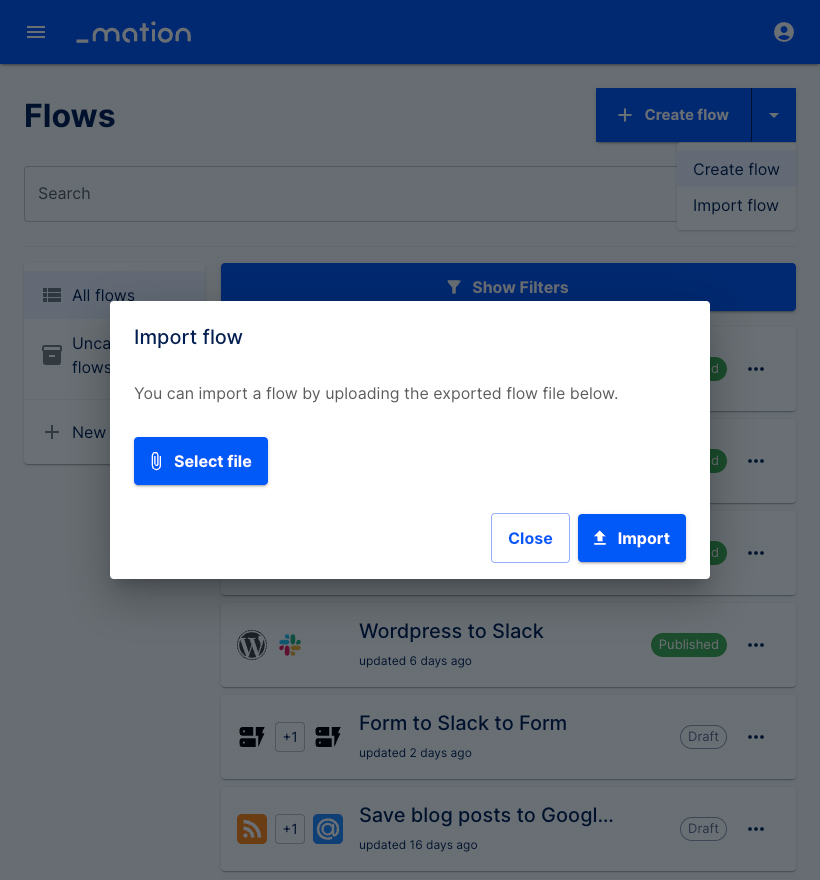
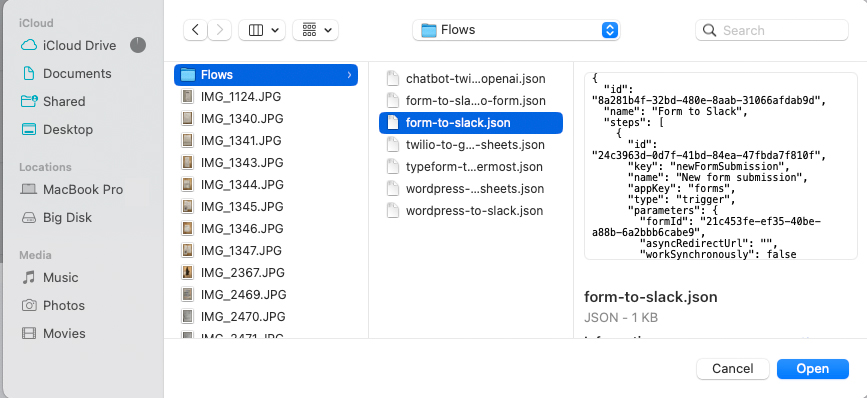
- Choose the JSON file you want to import. Click the Open button.
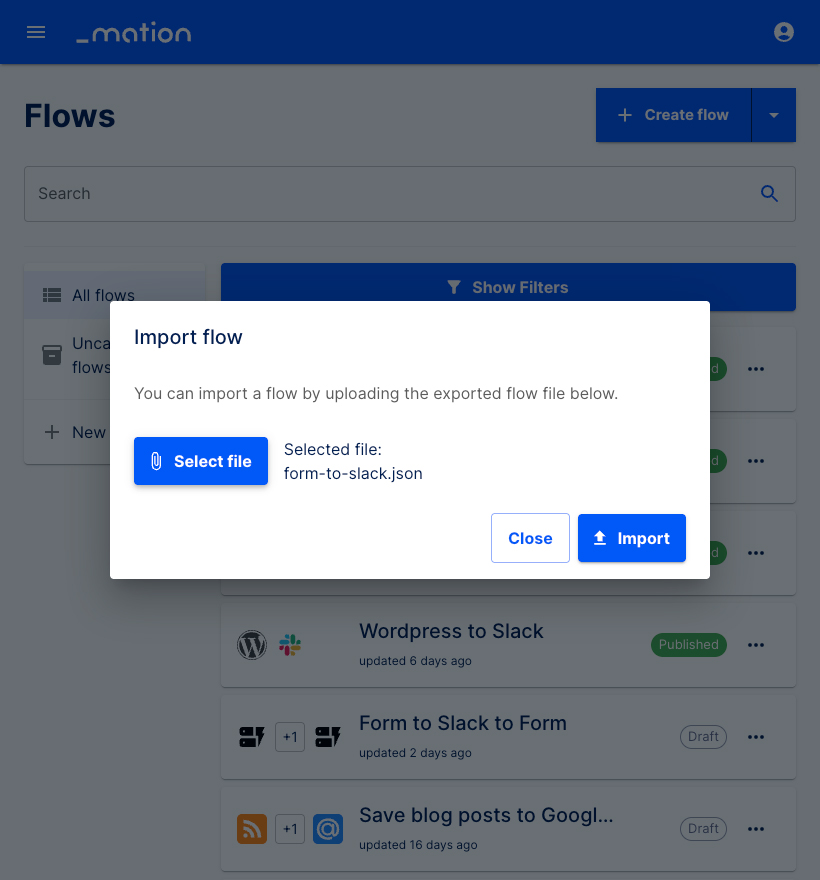
- The JSON file has been selected and is ready for import. Click the Import button.
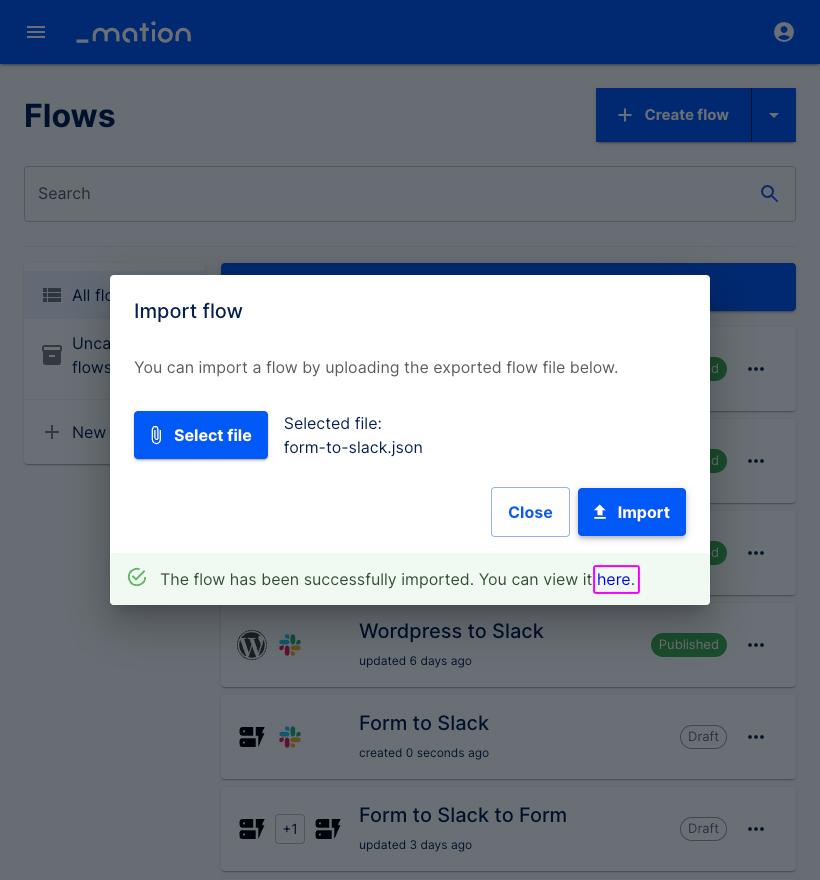
- The flow has been imported successfully. Select here to view the flow.
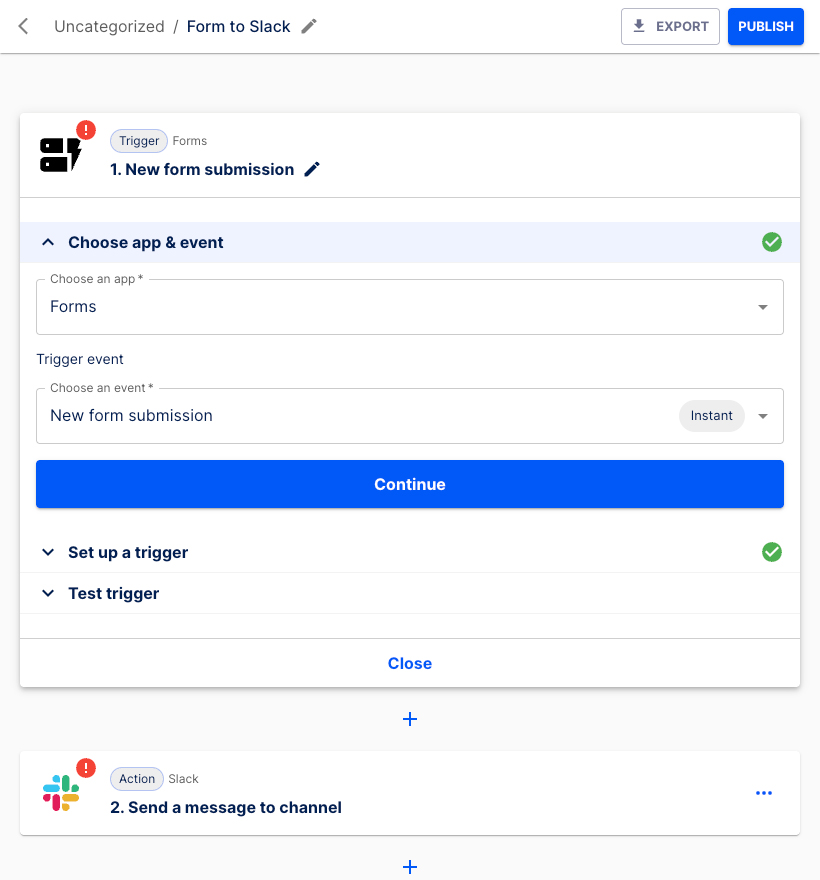
- You can now edit and publish the flow.
Flow templates
Flow templates make automation even easier on Workflow Automation. A flow template is a preconfigured flow you may use directly or alter for your purposes.
INFO
Only users with Admin roles have access to Flow templates.
Create a flow template
Select the meatball (...) menu of a flow listed in the Flows page.
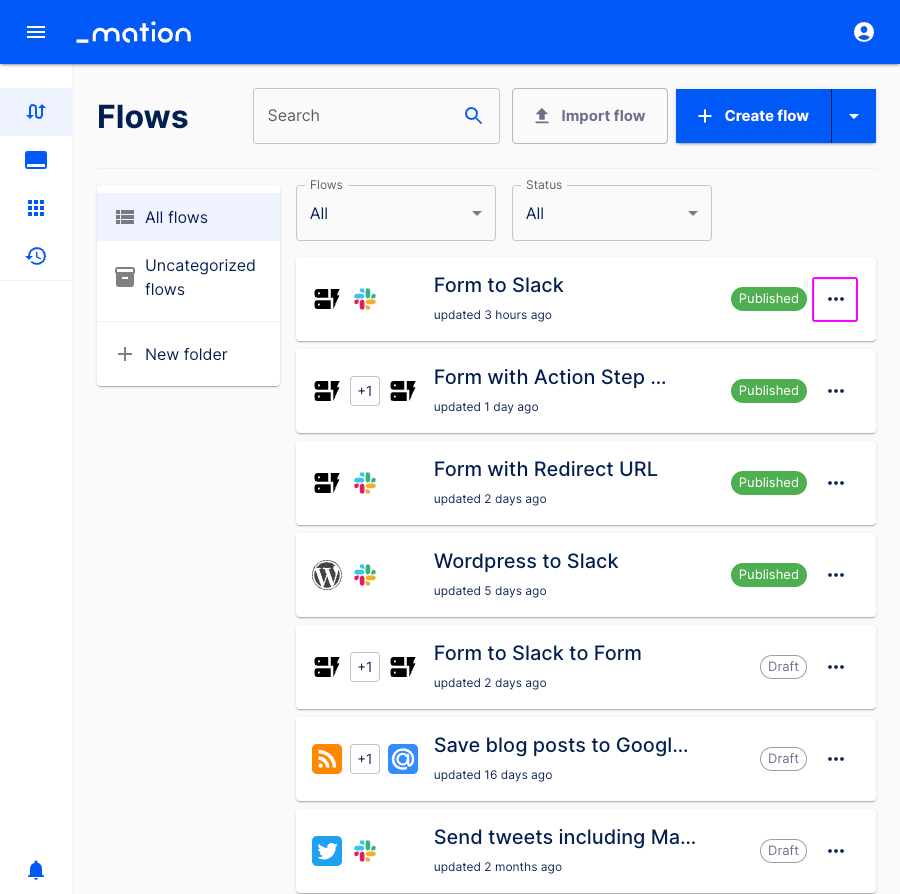
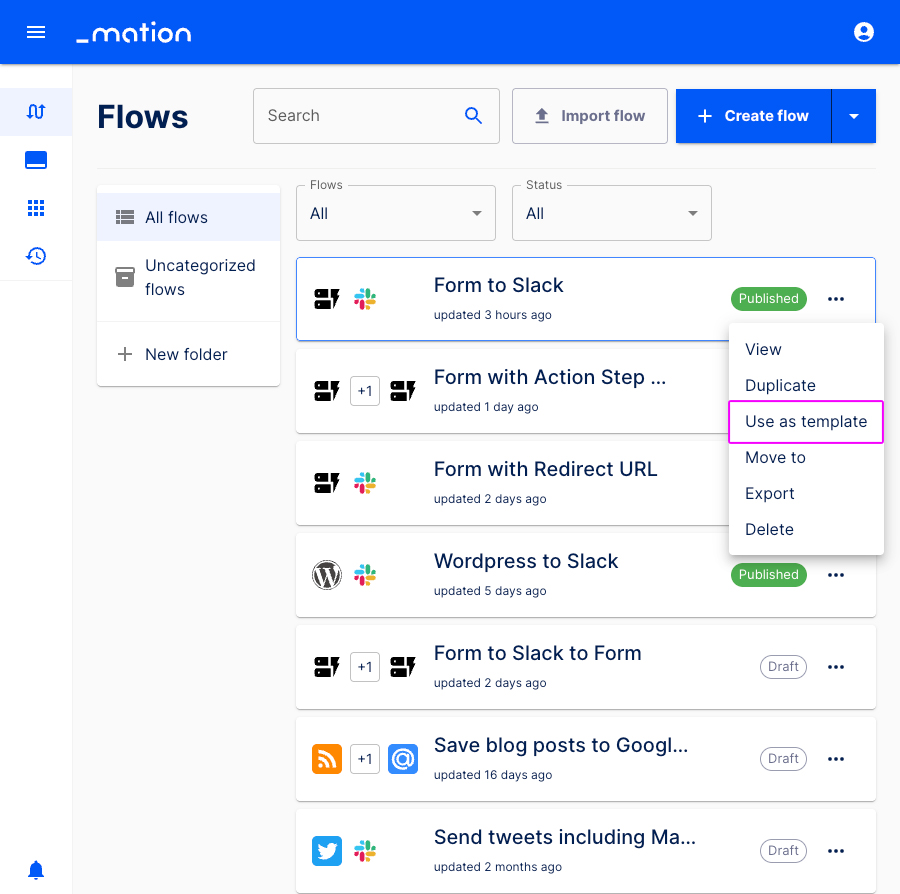
Click Use as template.
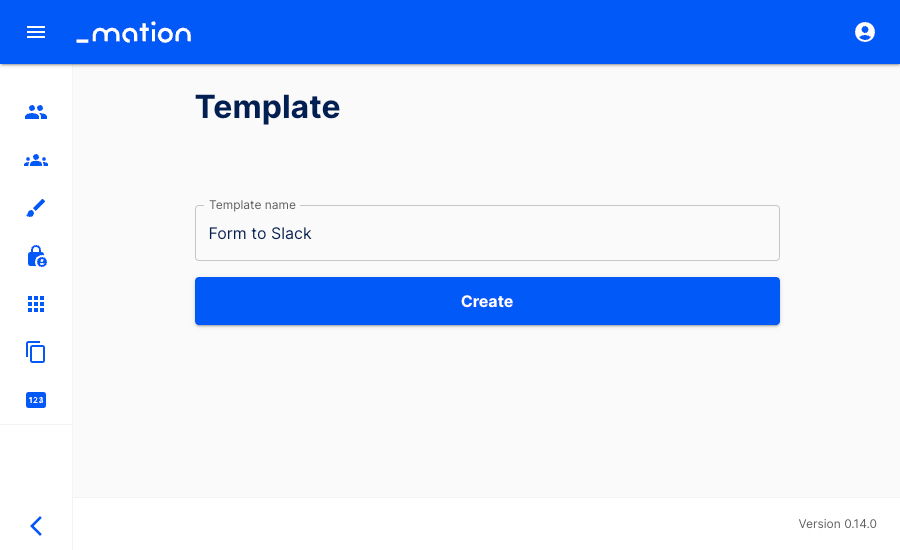
Edit the suggested Template name or simply click the Create button.
NOTE
You have been redirected to the Admin settings menu.
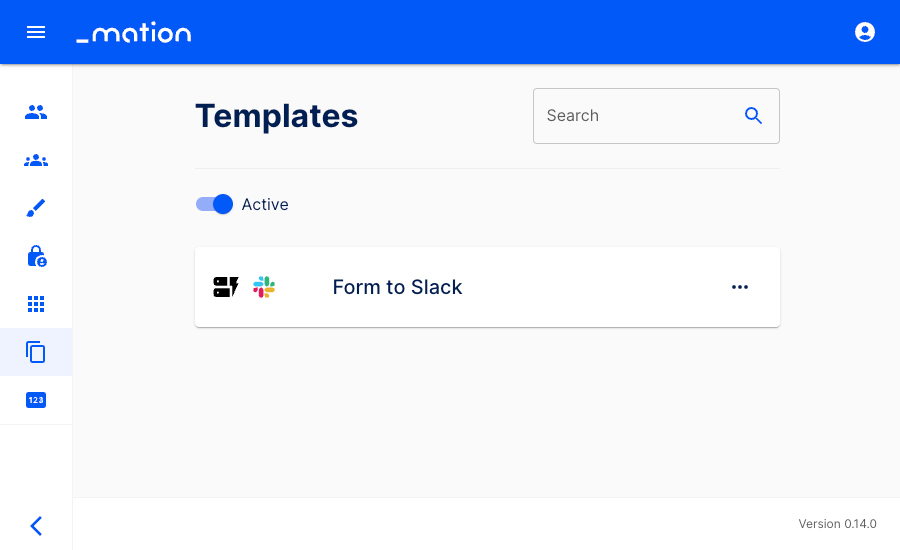
The flow template has been created successfully and is now listed on the Templates page.
To delete a flow template, simply click the meatballs (...) menu and choose Delete.
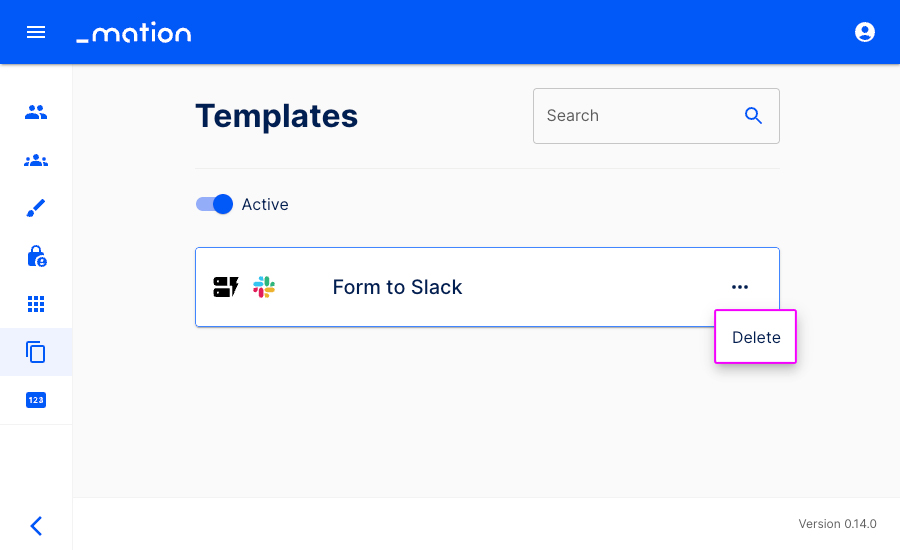
Alternatively you can also deactivate flow templates. Flick the switch to deactivate a template.
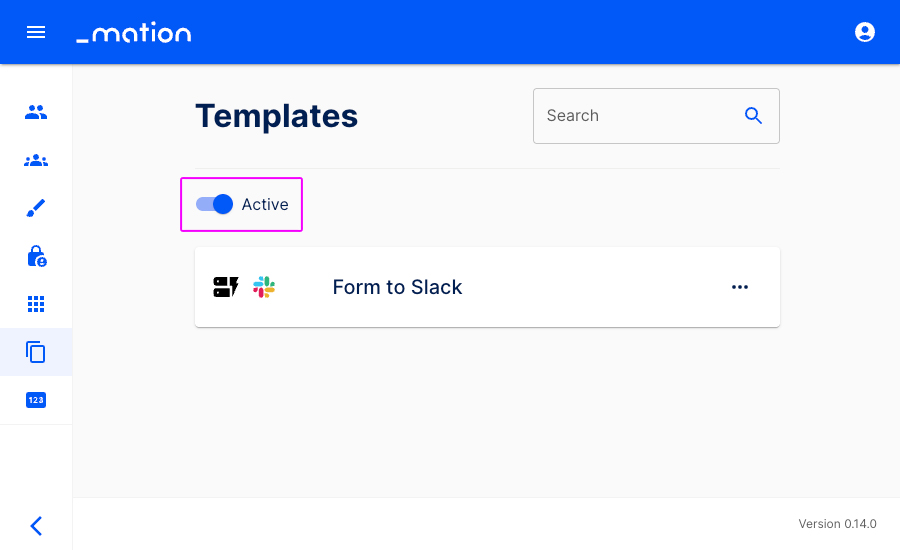
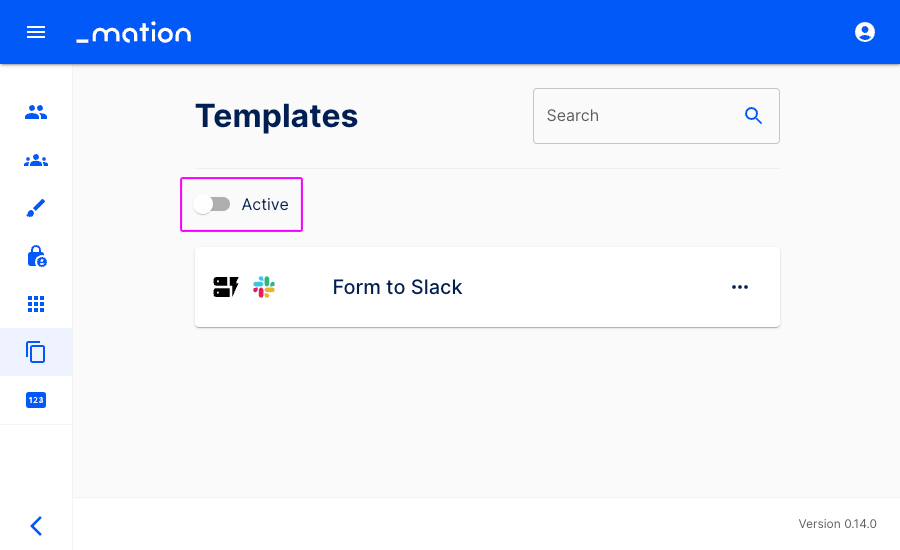
The flow template has been deactivated. You may reactivate the flow template by flicking the switch again.
Use a flow template
- Click Create from template.
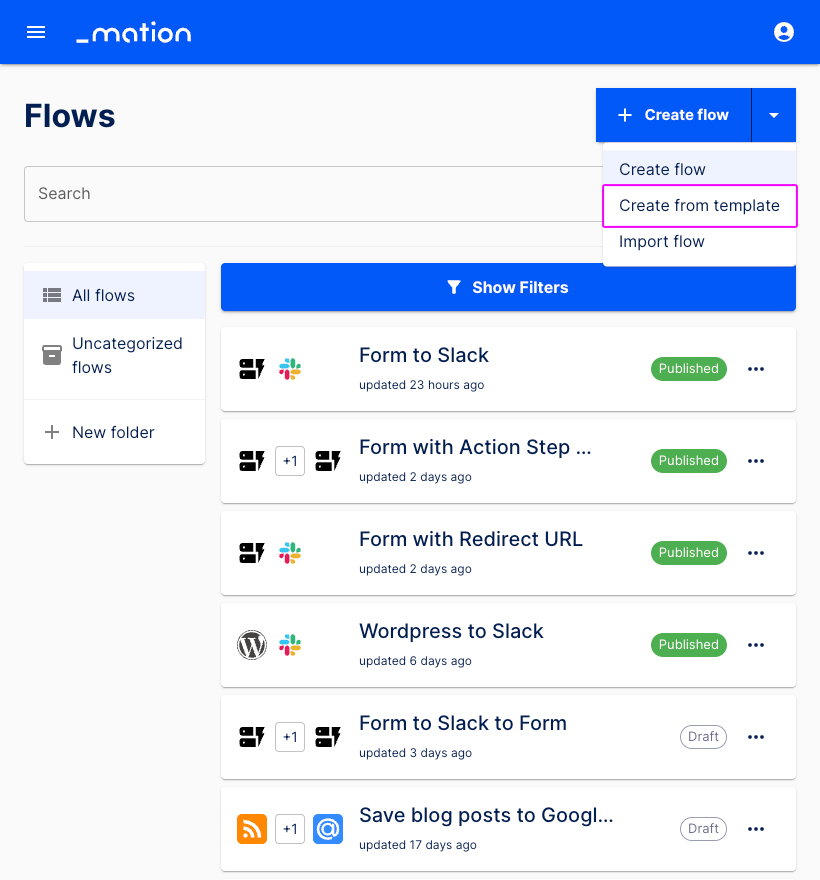
- Choose a template.
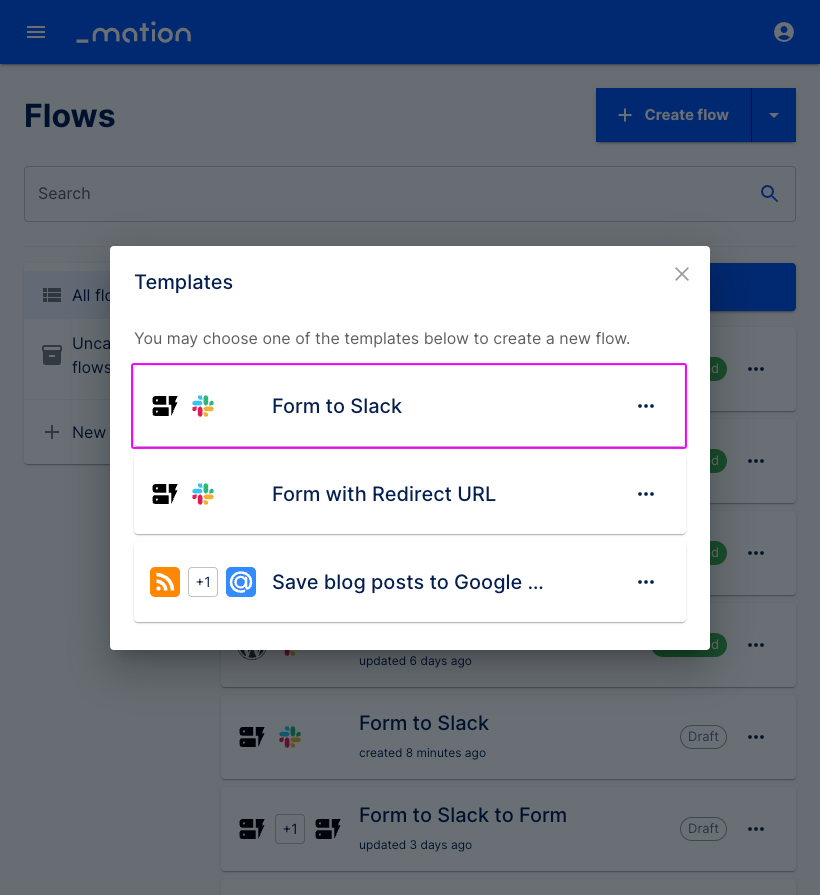
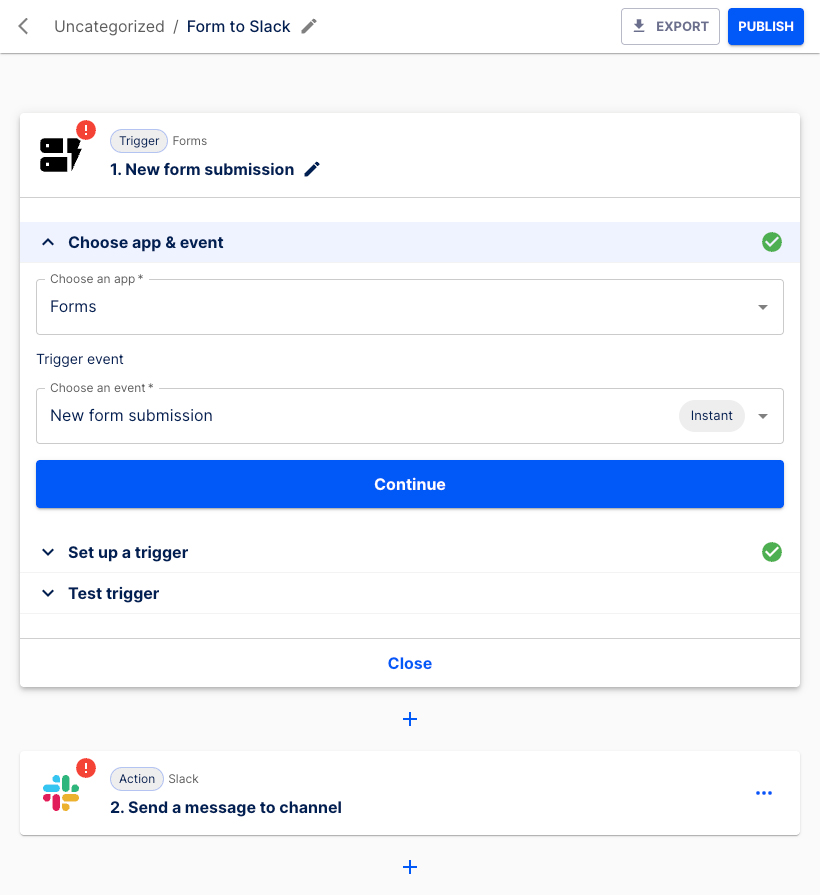
- You can now edit and publish the flow.
Flow folders
Flows streamline tasks, flow folders keep them neatly organized. Learn how to create a folder, edit a folder, or delete a folder.
Create a folder
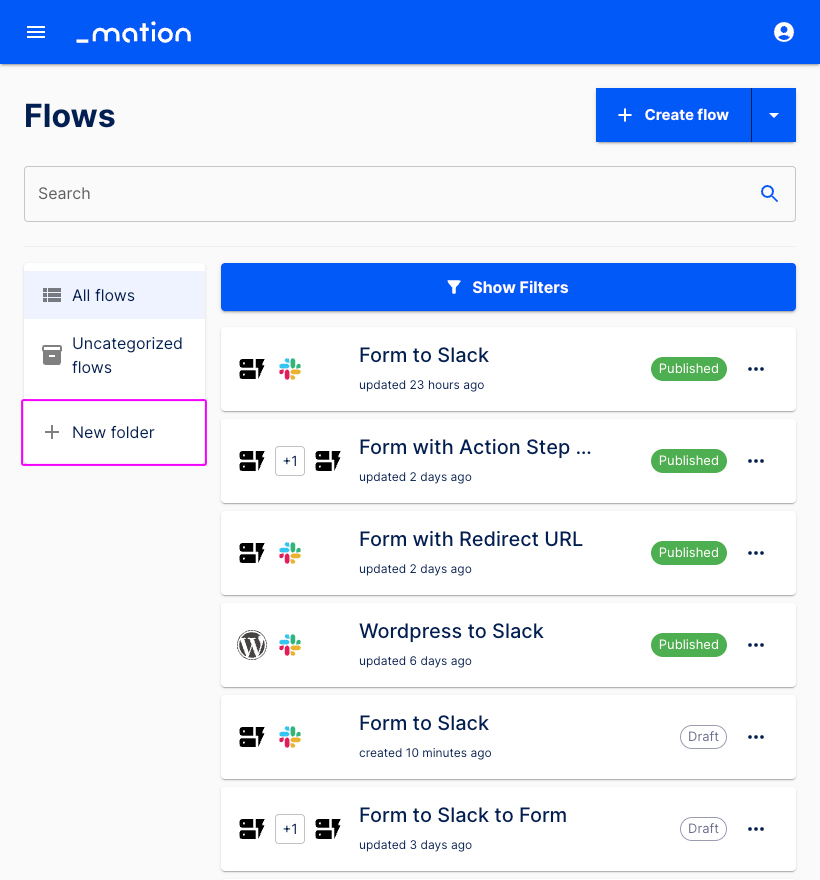
- Click the + New folder button.
- A modal appears. Enter a Folder name. Click the + Create button.
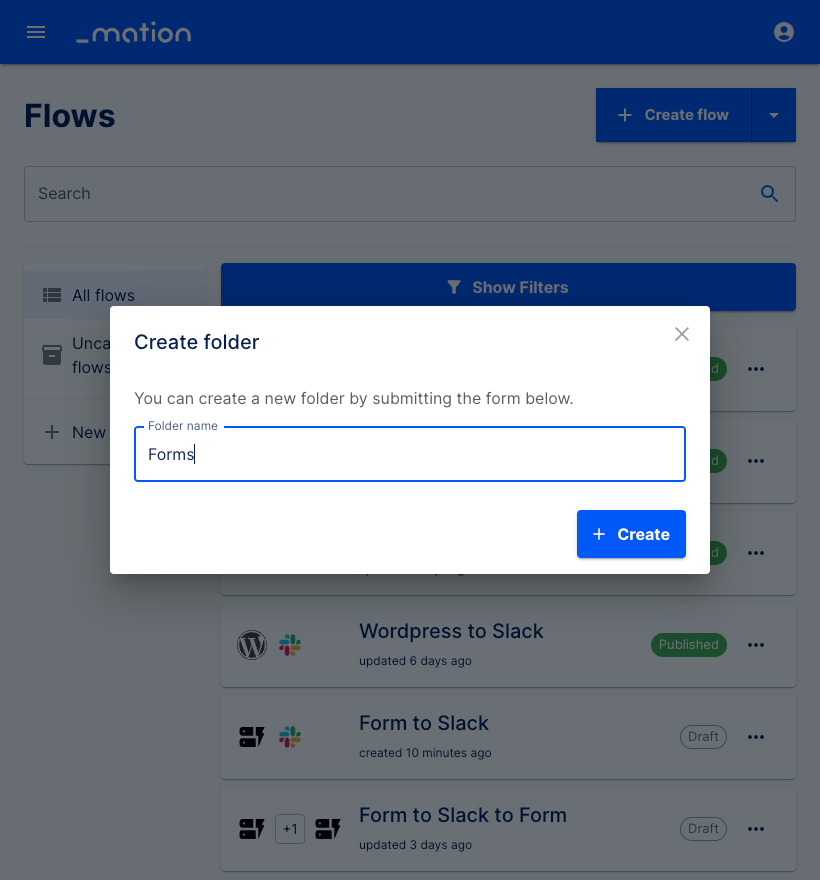
- The new folder has been created successfully and is now displayed in the Flow folders list.
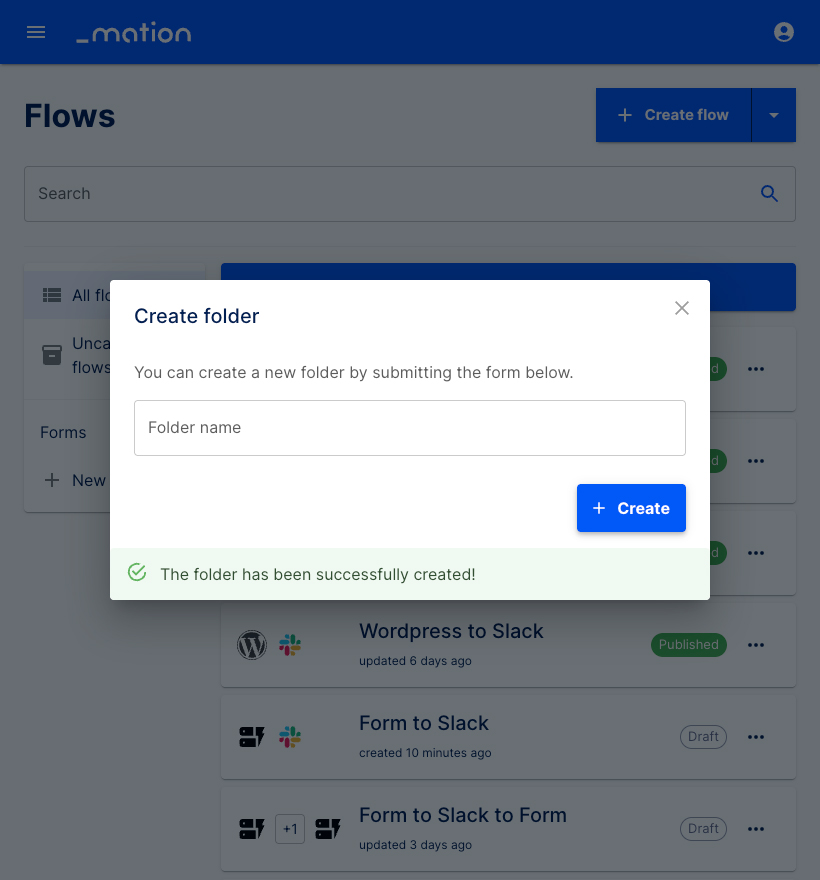
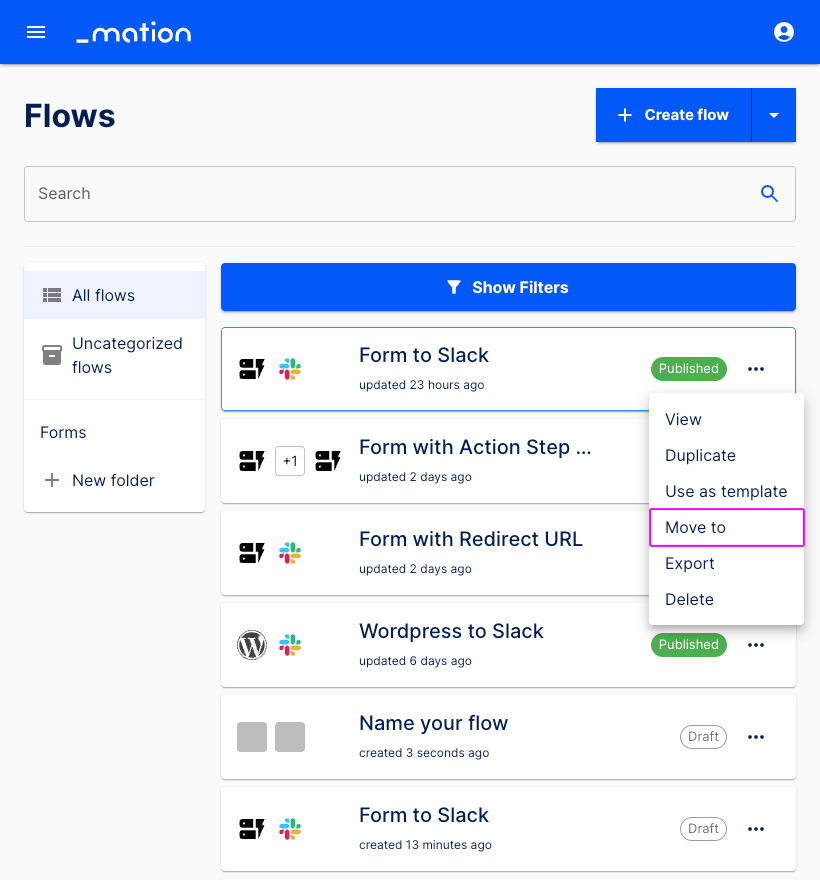
- Select a flow you would like to move to a folder.
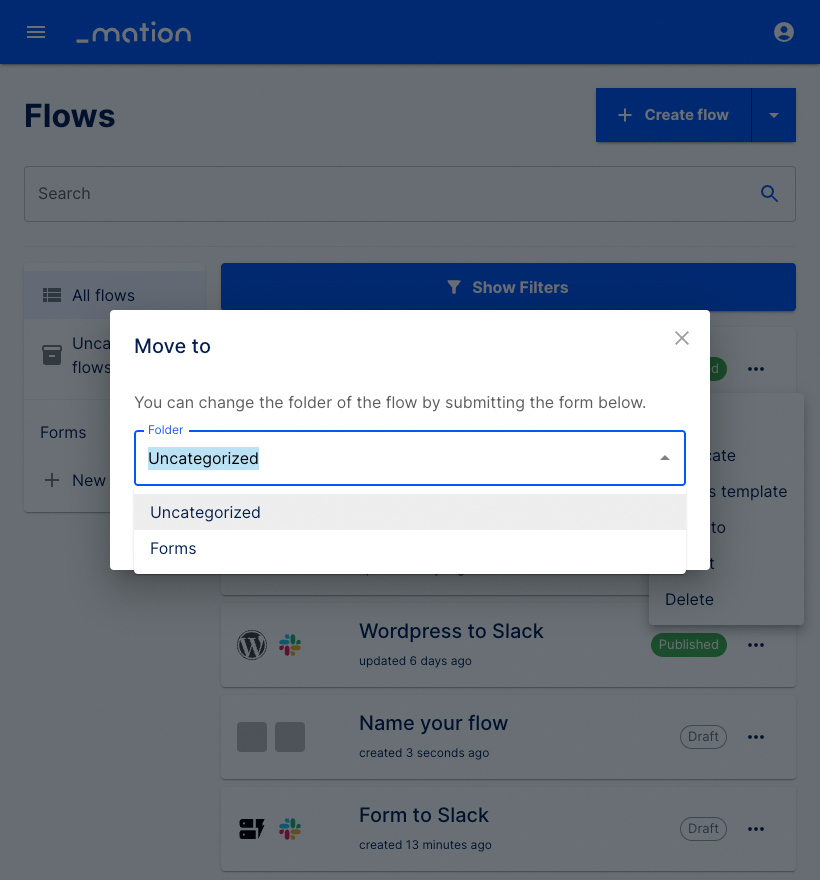
- A modal appears. Choose a folder.
- Click the Move button.
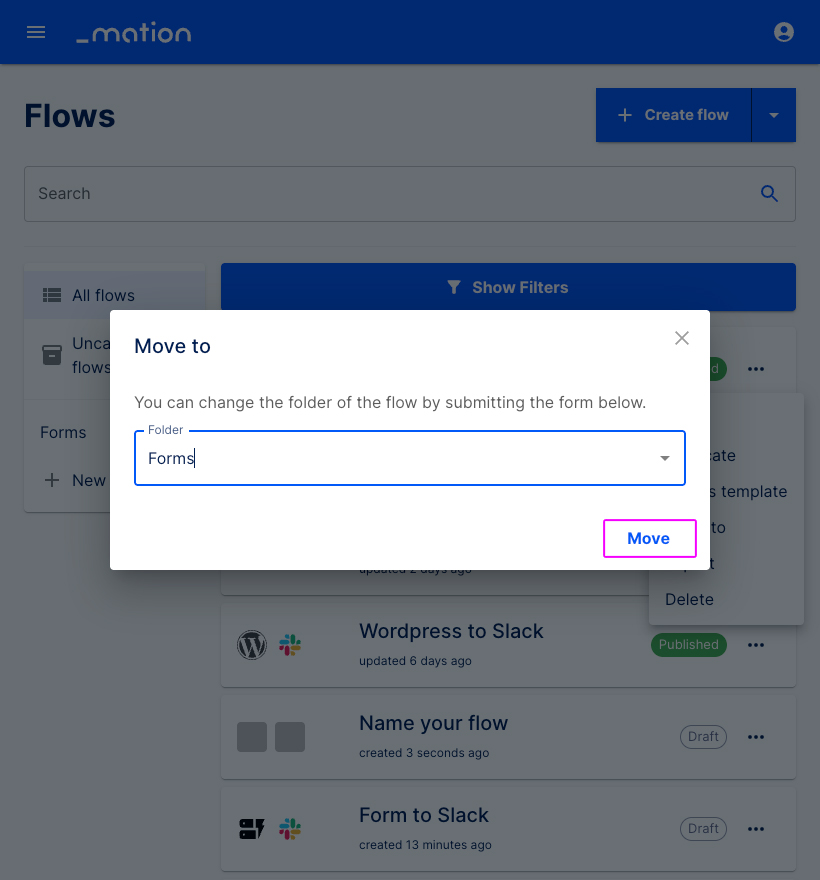
- The selected flow has been moved to the Forms folder.
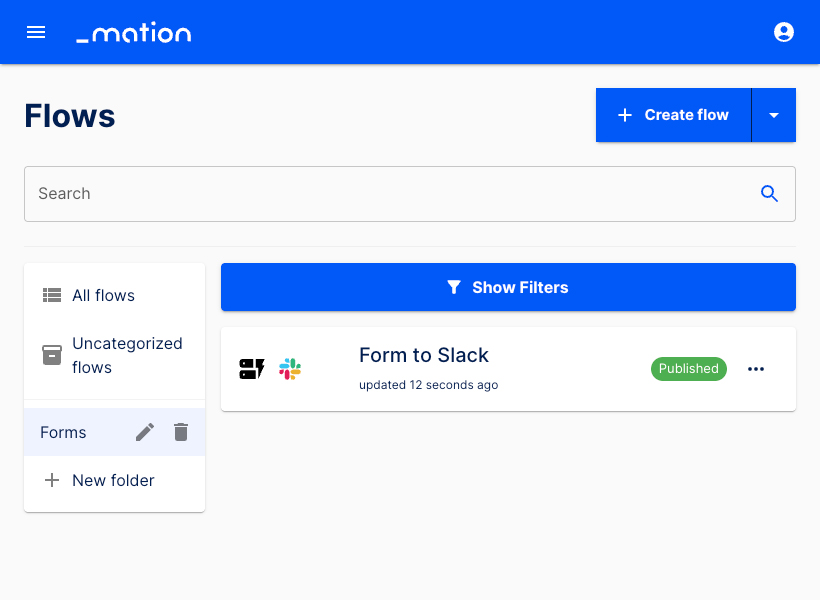
Edit a folder
- Click the pen icon to edit a folder.
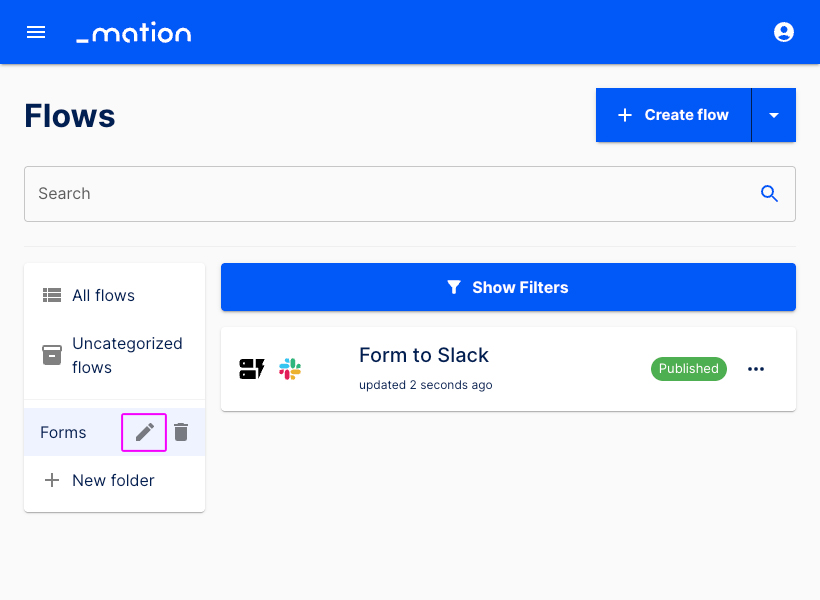
- Edit the New folder name, for example.
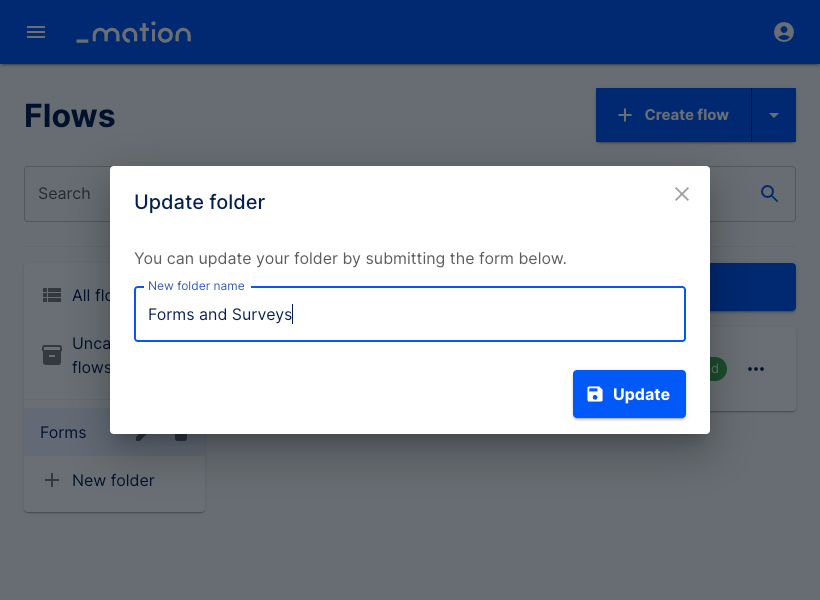
- Press the Update button.
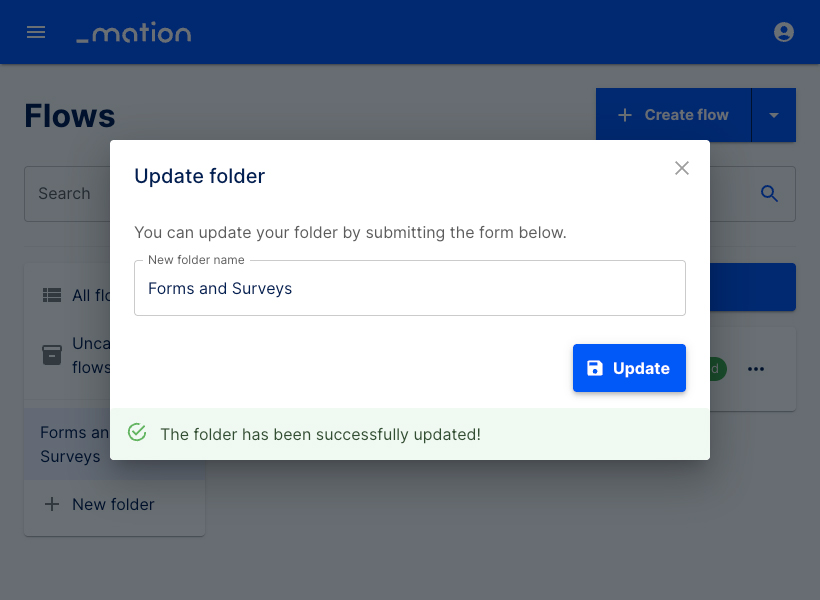
- The folder has been updated successfully.
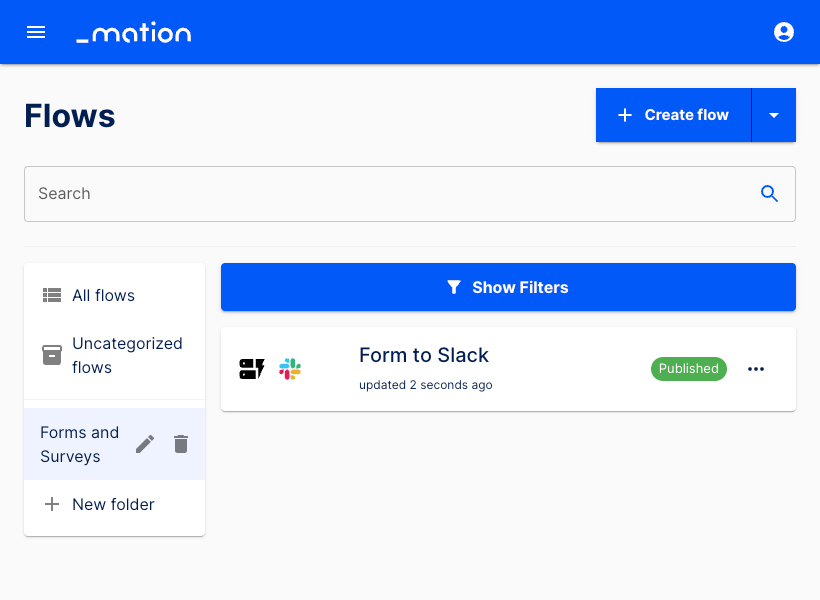
Delete a folder
Click the trashcan icon to delete a folder.
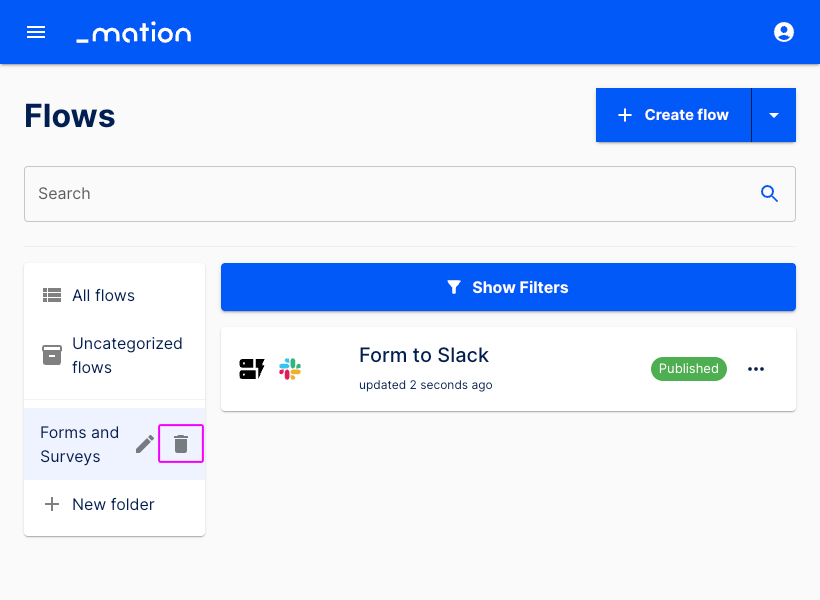
A modal appears. Select the Yes, delete it button to permanently delete the folder.
INFO
Deleting a folder does not delete its flows. They are moved to the general Uncategorized flows list.
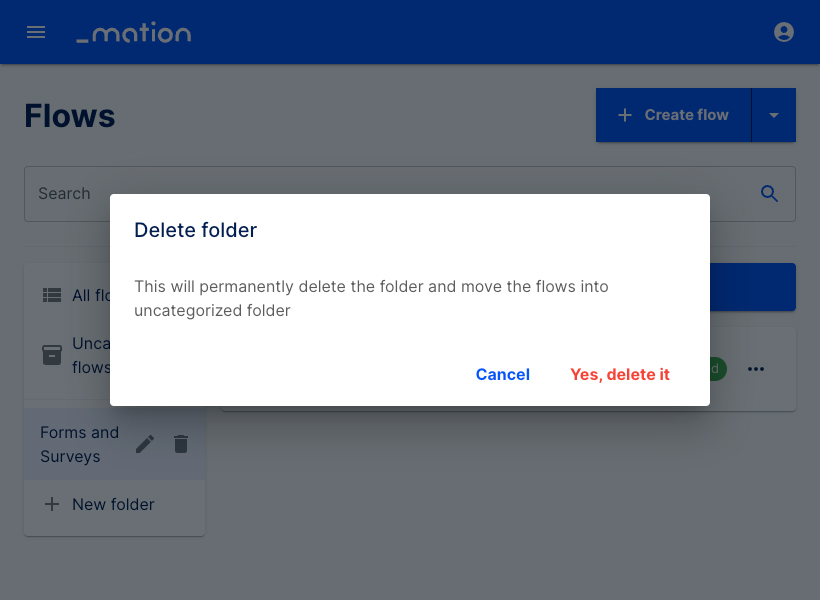
The folder has been deleted. The flow has been moved back to the general Uncategorized flows list.
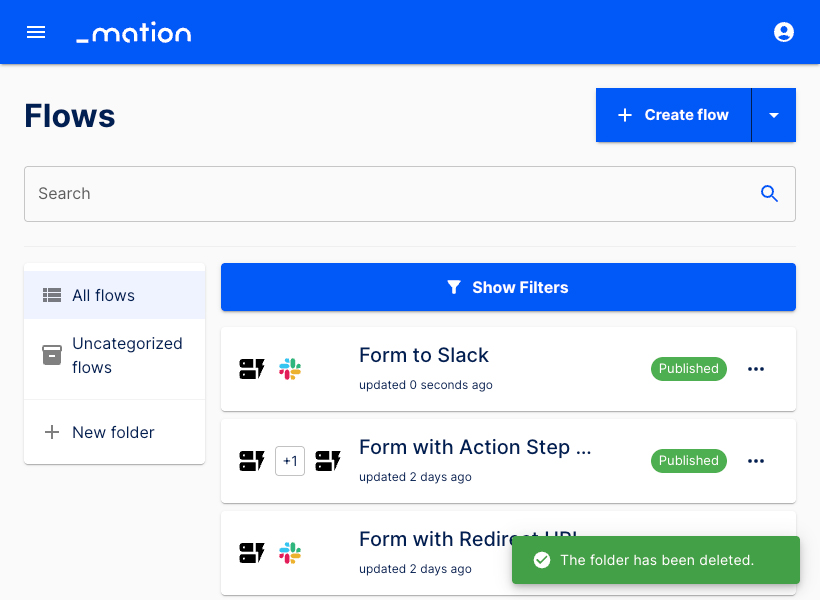
Search a flow
- Use the Search field to locate a specific flow.
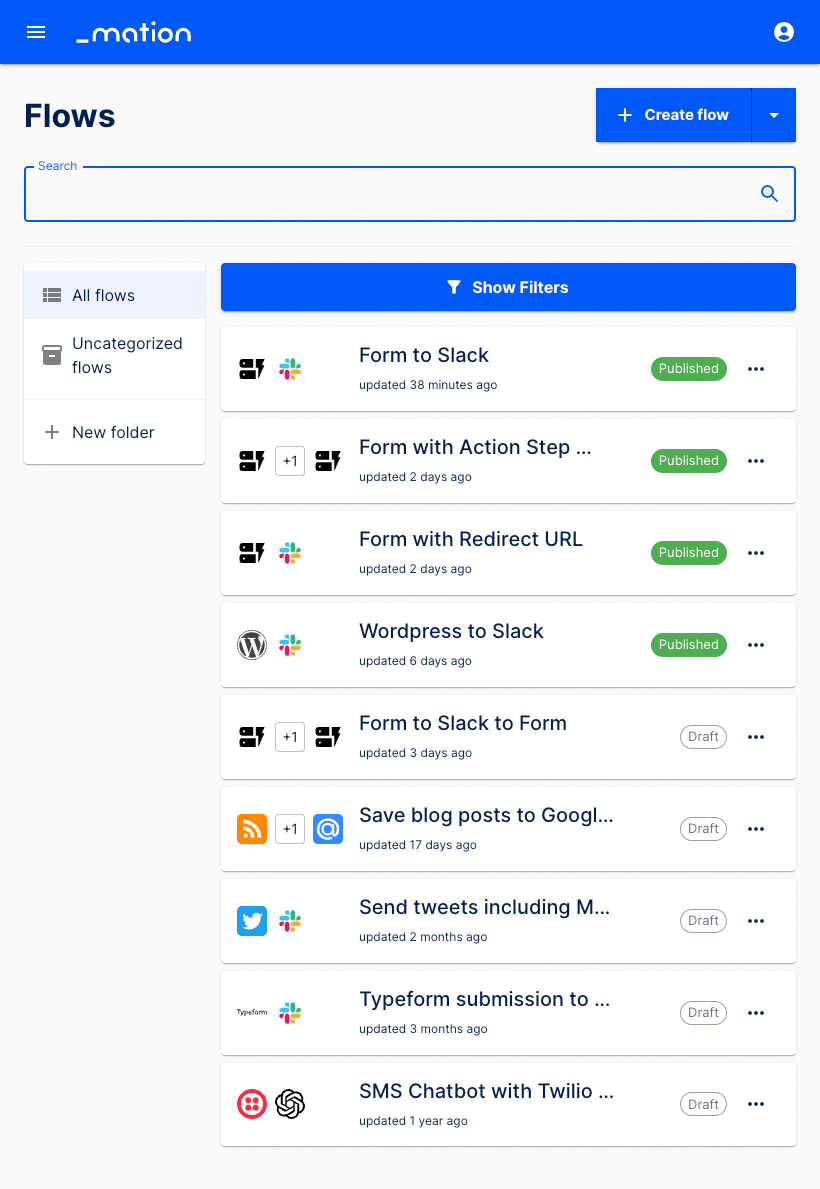
- Enter a search term to narrow down the list.
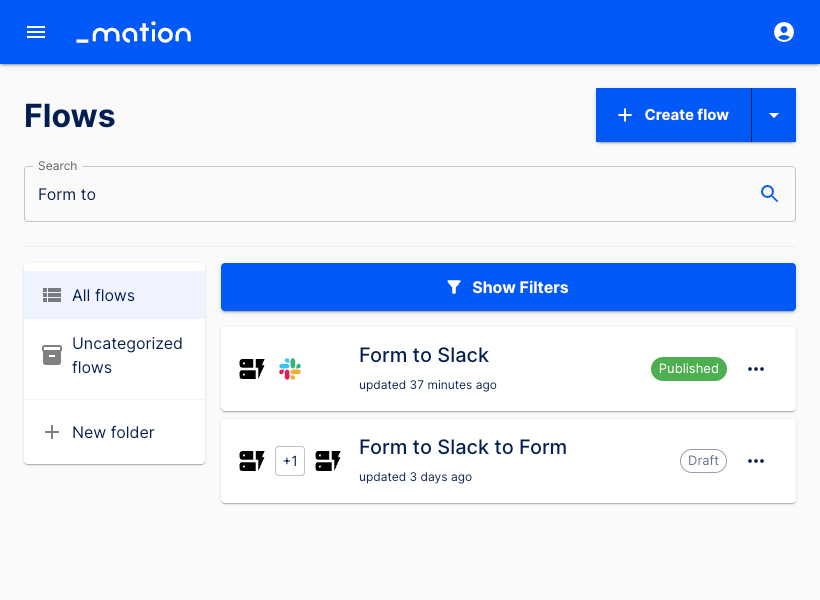
Filter flows
Use Filters to display only specific flows.
- Click the Show Filters button.
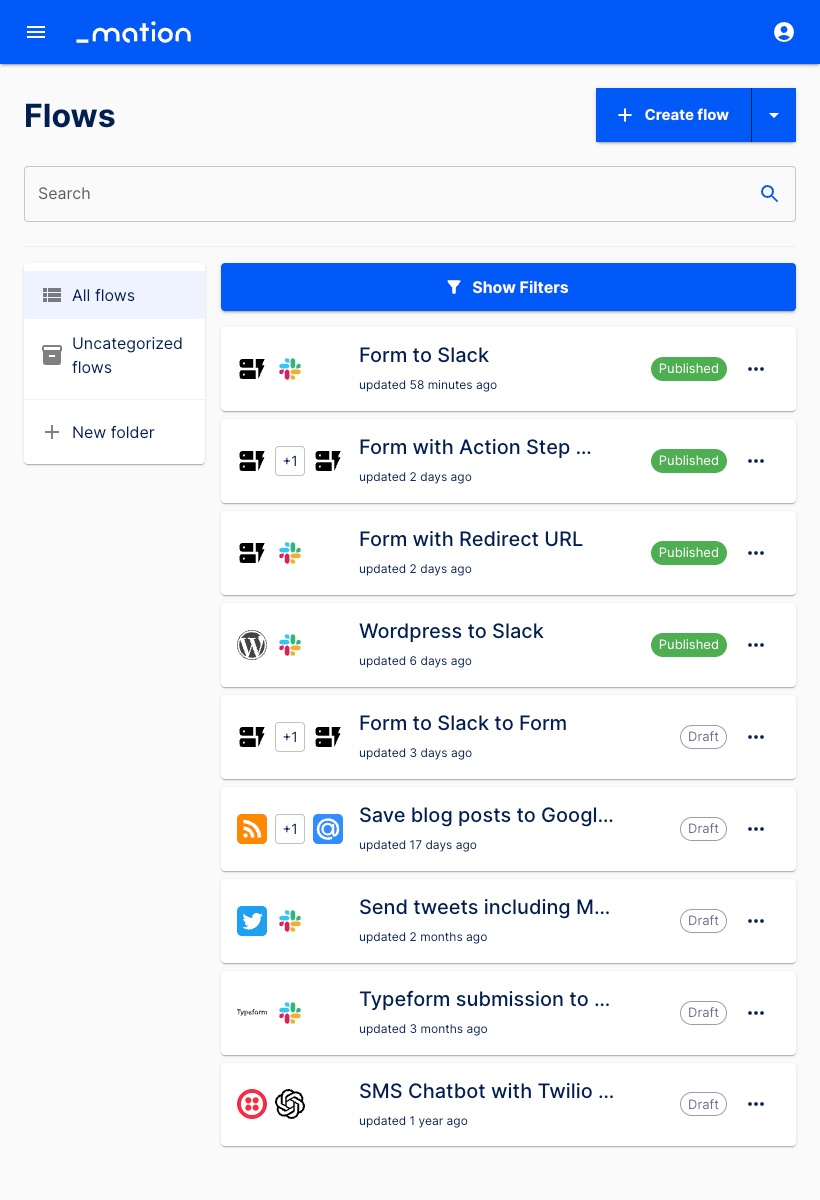
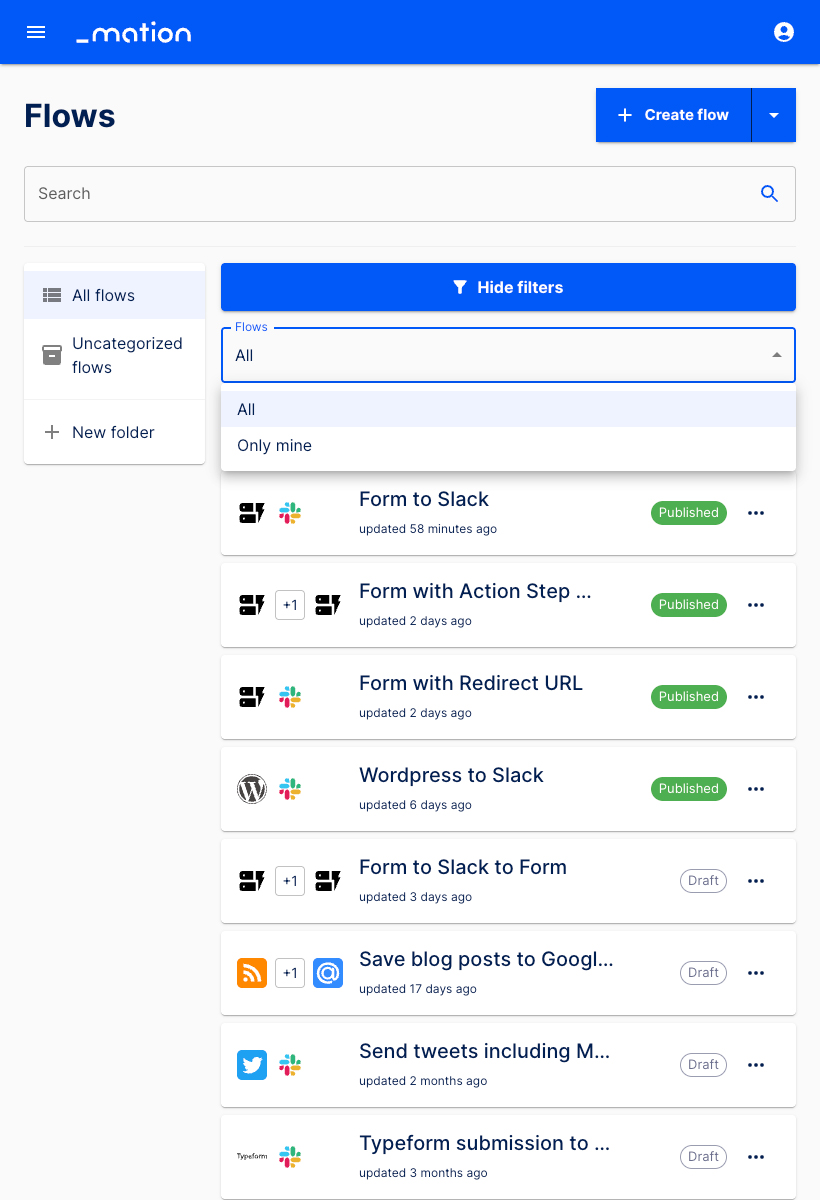
- Two primary filters are available for flows: Flows and Status.
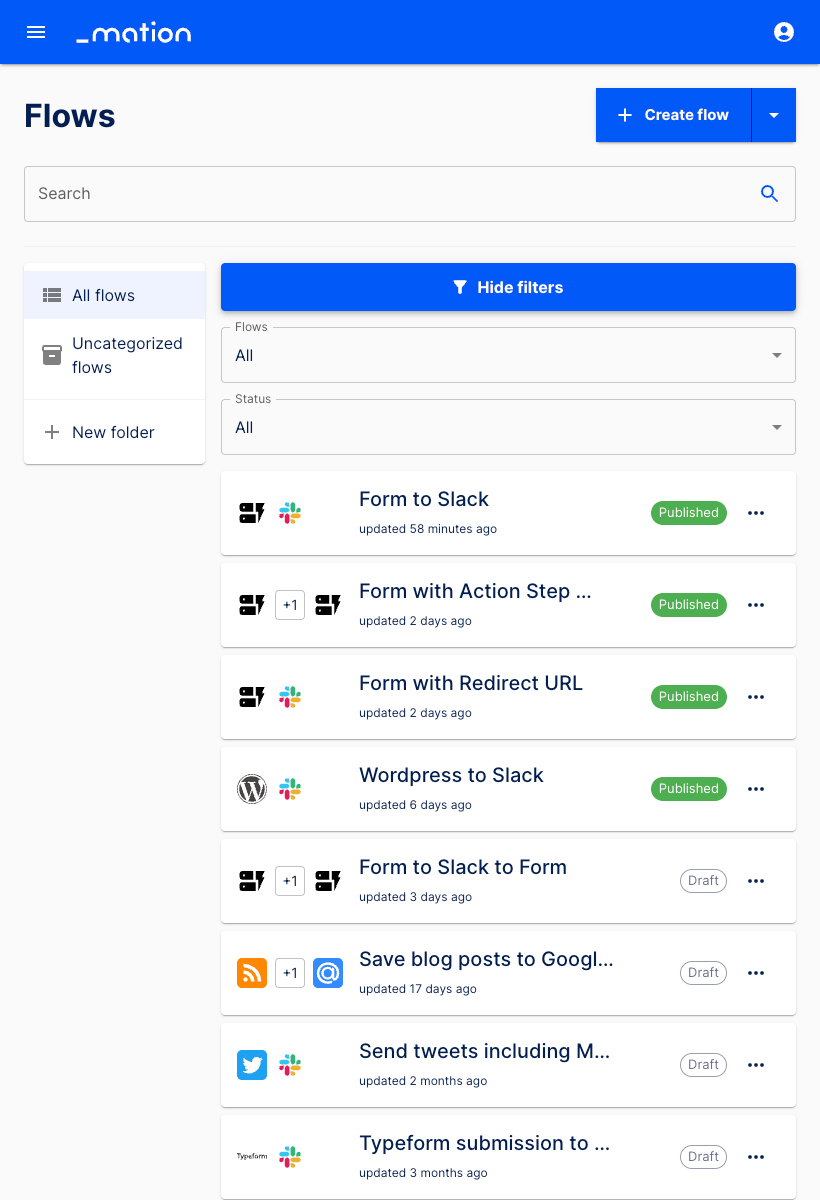
- Use the Flows filter to display All flows (default) or Only mine.
- Use the Status filter to show All (default), Published, or Draft flows. Let’s select Published.
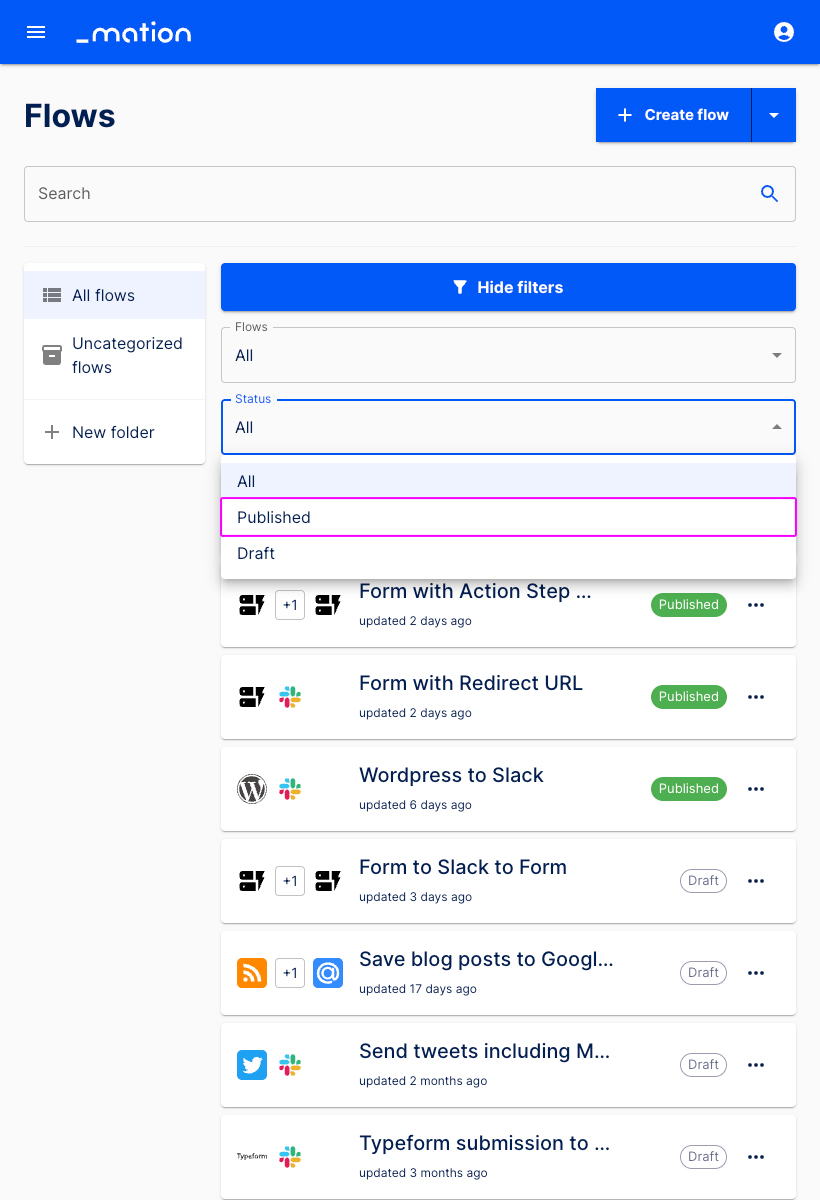
- Now only Published flows are listed.